Blog

Mon Oct 12, 2026 : Prism in a Tube

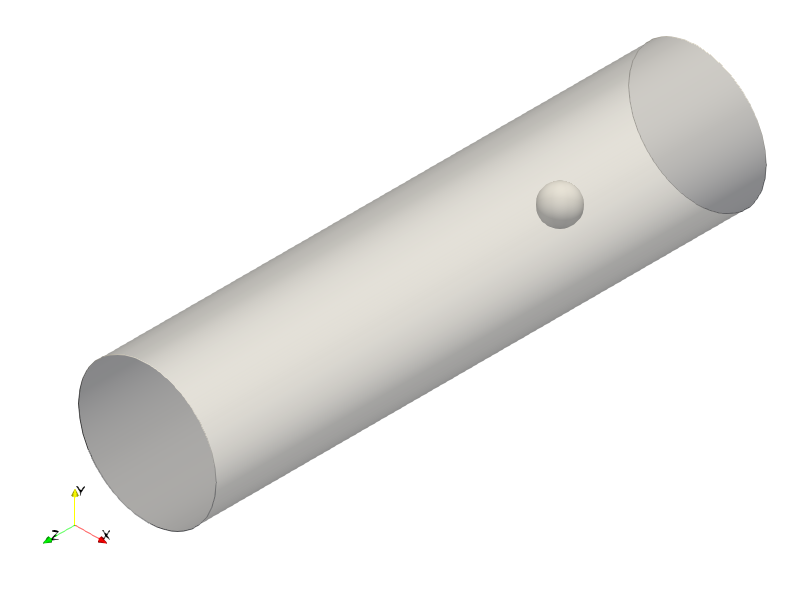
This simulation is a continuation of the Von Kármán vortex street series. This time, instead of a sphere, we place a prism inside the cylinder.

Since OpenFOAM does not provide a built-in searchable prism shape, we have to use an STL file. We can approach geometry specification in two ways:

  1. Create a prism and embed it inside a searchableCylinder.
  2. Create the entire combined geometry in CAD.

The second approach gives us much better control over sharp edges.

The geometry was created in FreeCAD and exported as an STL file. Before configuring snappyHexMesh, we need to prepare the surface mesh.
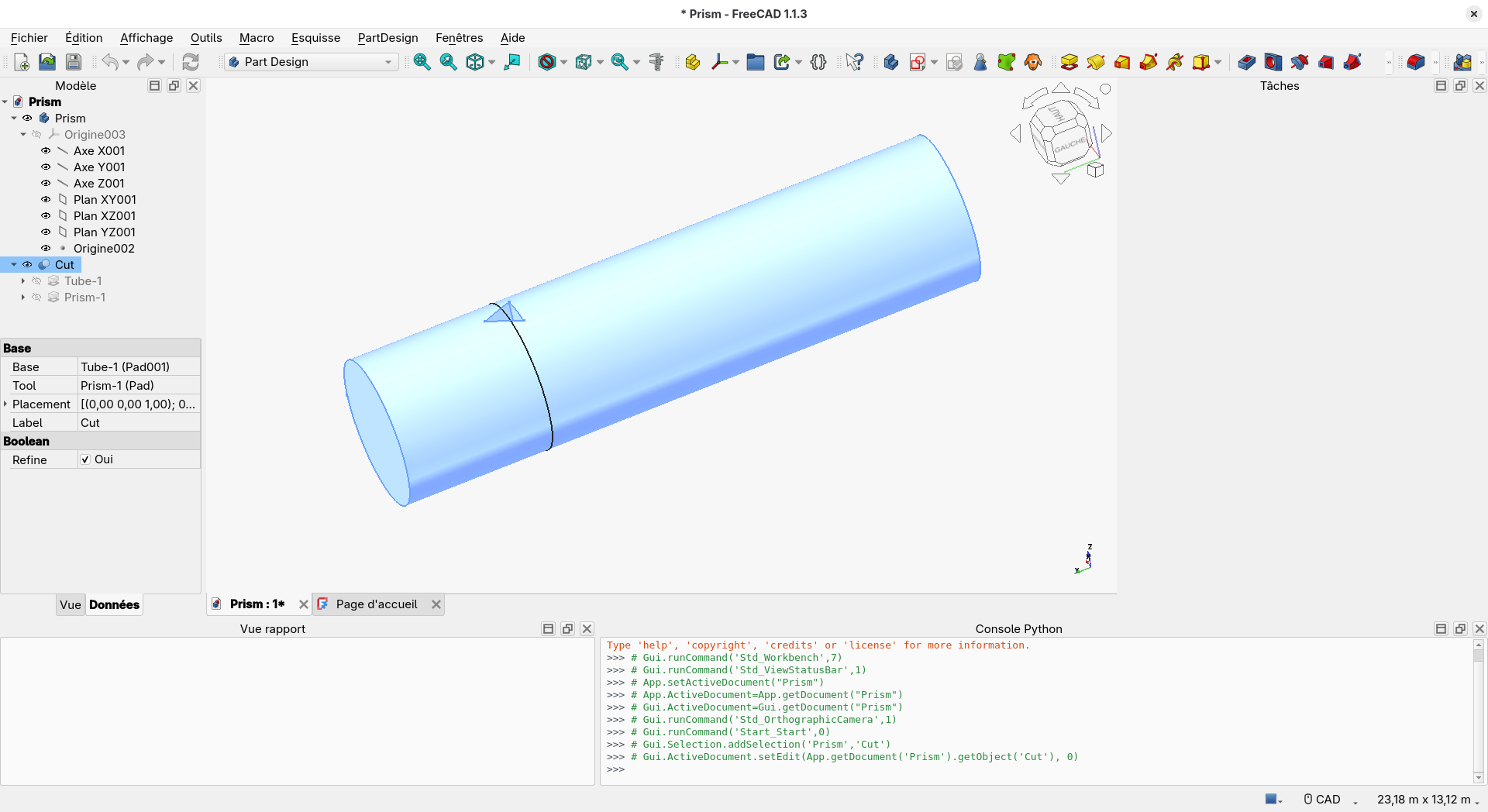
FreeCAD with tube

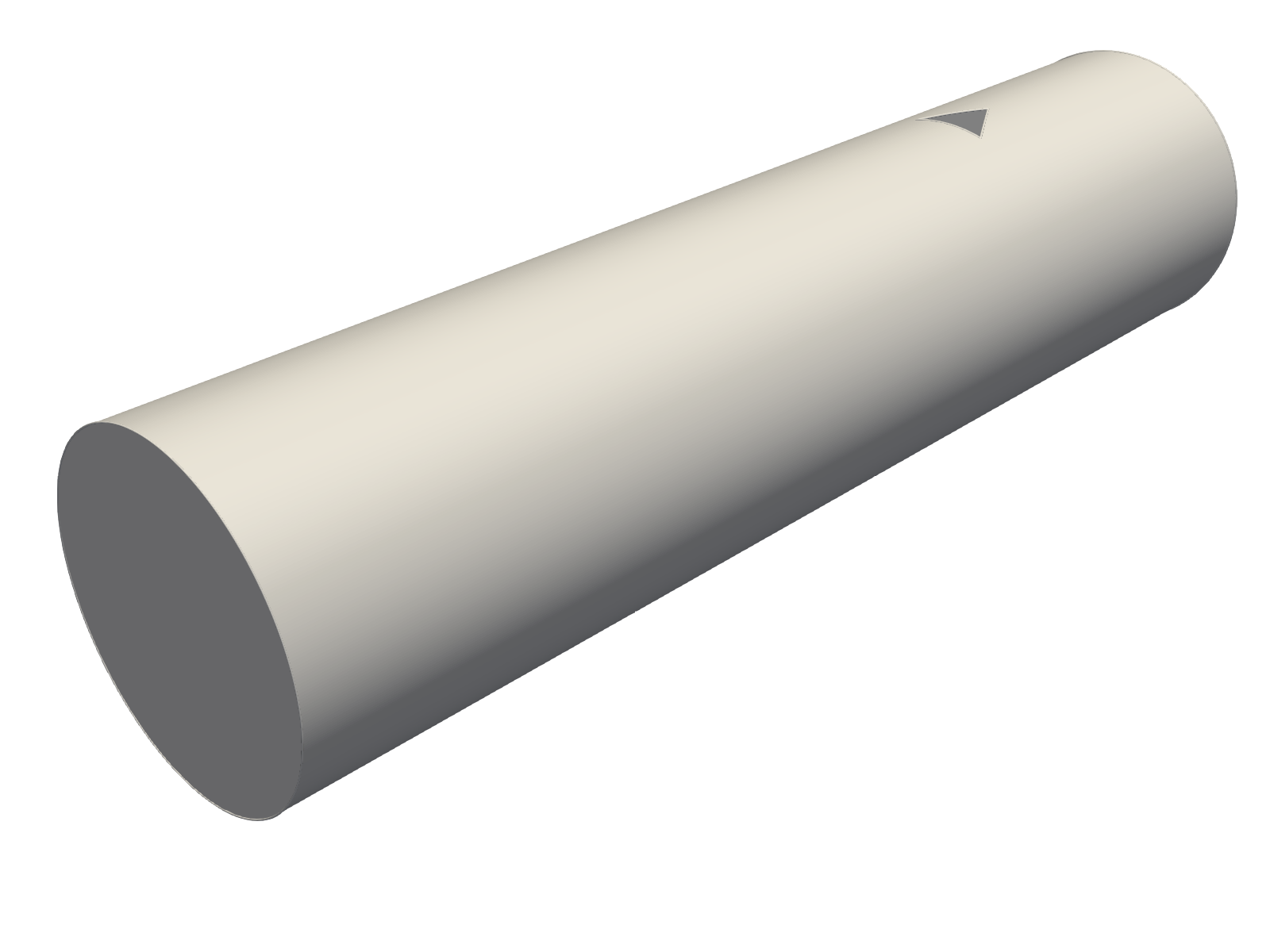
STL surface of the tube and prism

snappyHexMesh can process multi-solid STL files, so the first step is to split the STL into separate surfaces. This simplifies mesh snapping and prismatic boundary layer generation, as every surface in the STL becomes either smooth (the cylinder) or flat (all other faces).

To split the STL into distinct surfaces, we use the surfacePatch utility. This utility is an evolution of surfaceAutoPatch and allows us to specify surfaces and split algorithms via a surfacePatchDict file:

geometry
{
    TubePrism.stl
    {
        type triSurfaceMesh;
    }
};

surfaces
{
    TubePrism.stl
    {
        type        autoPatch;
        featureAngle    30;
    }
}

Running the utility generates a TubePrism_patched.stl file containing multiple solids:

solid Tube
 facet normal -0.999975 -1.57288e-18 0.00708072
  outer loop
   vertex -1.9998 12 0.0282381
   vertex -2 12 2.66454e-15
   vertex -2 -4 -8.88178e-16
  endloop
 endfacet
 ...
endsolid Tube
solid Outlet
...
endsolid Outlet
...
solid Prism-3
...
endsolid Prism-3

Note: By default, surfacePatch names solids using a generic zone* pattern. The Tube, Outlet, and Prism-3 patch names were assigned manually by editing the STL text file.

After splitting, the STL file contains 6 distinct solids: the tube wall, inlet, outlet, and the three faces of the prism.
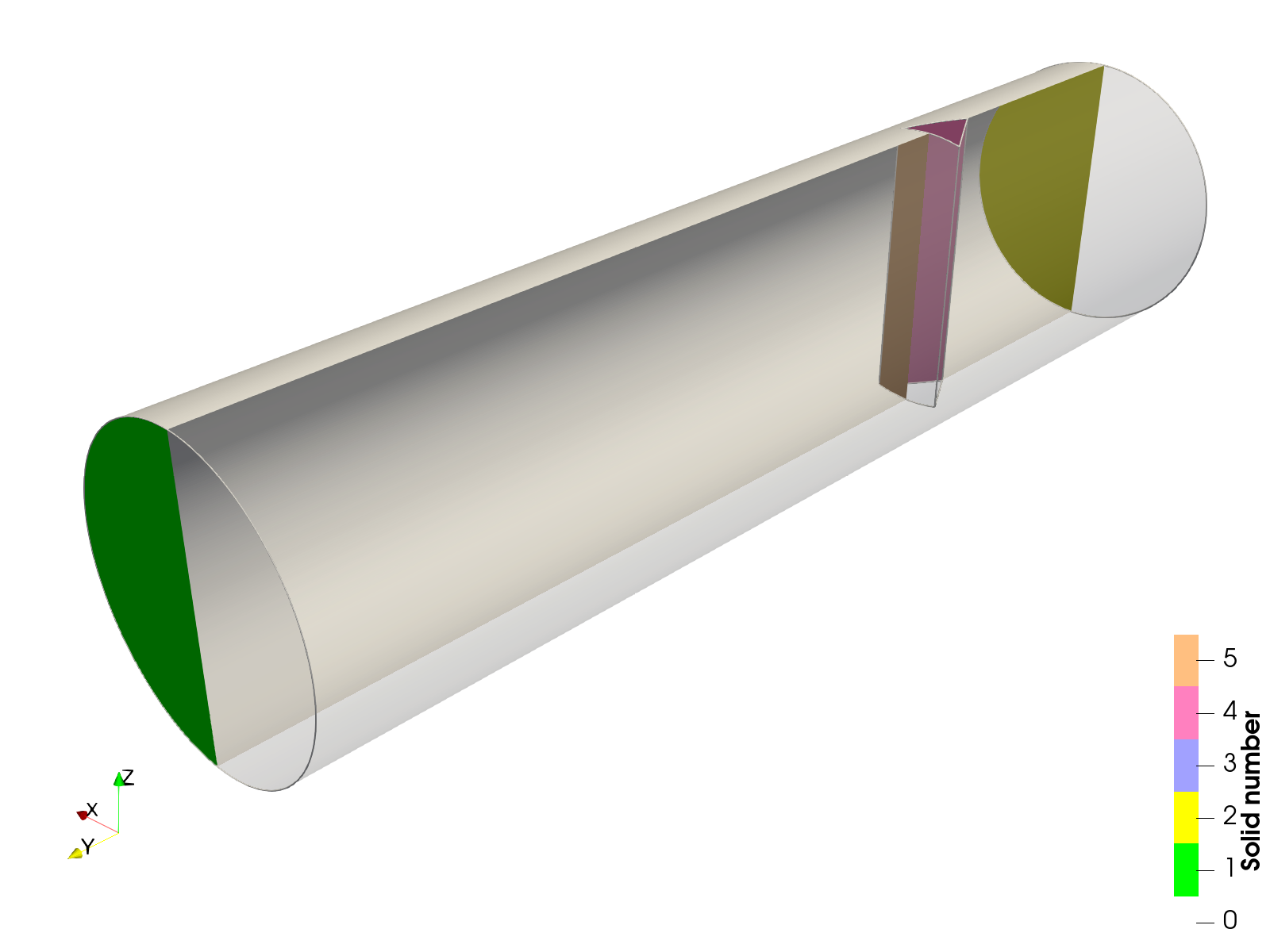
STL file with multiple solids

Extracting Feature Edges

The next preparation step for mesh generation is extracting explicit feature edges using the surfaceFeatureExtract utility.
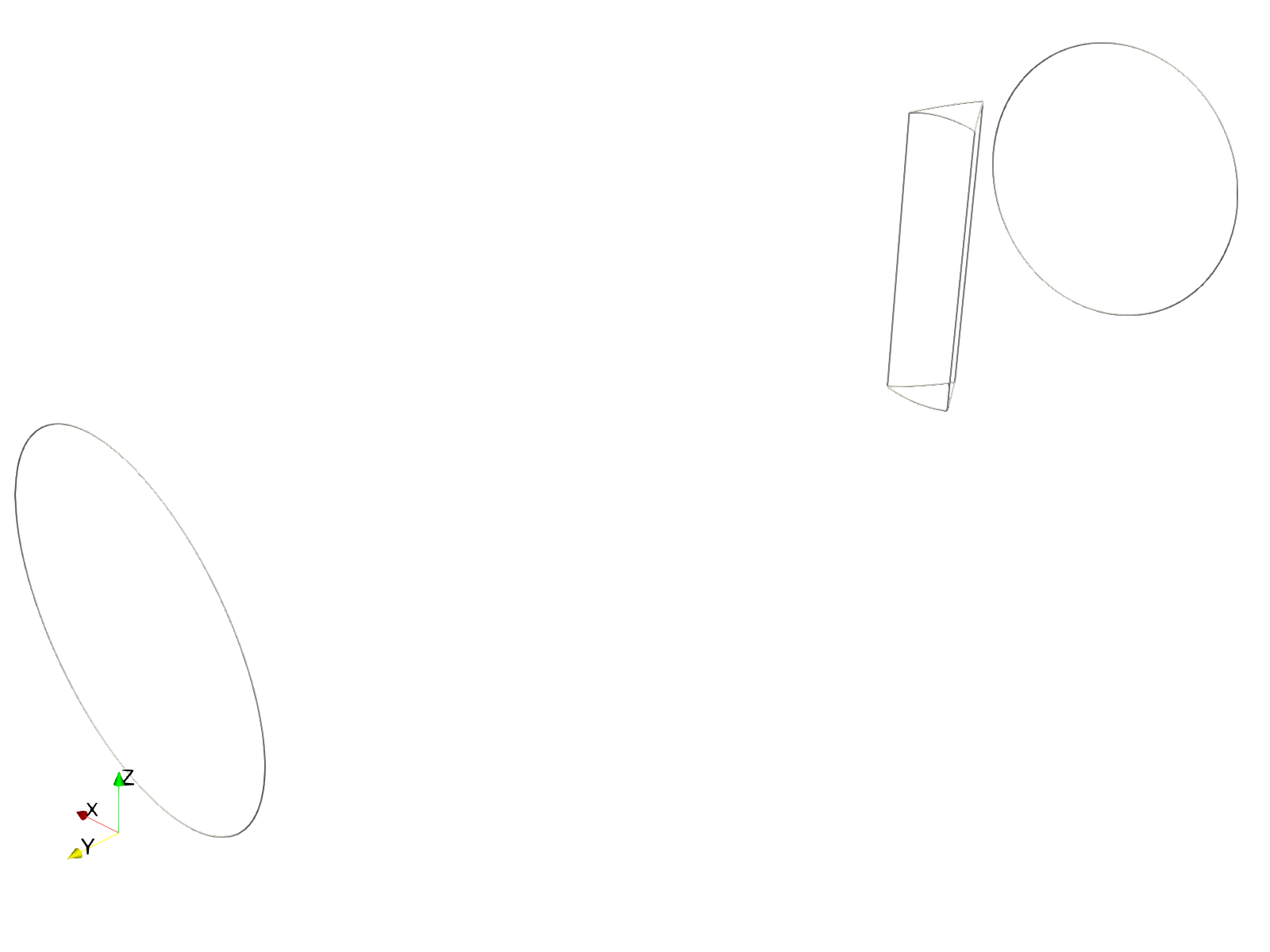
Extracted feature edges

These feature edges guide background mesh refinement and improve geometry snapping during mesh generation.

Mesh generation

With surface preparation complete, we can generate the mesh. The first phase is creating the castellated mesh. We refine the background mesh along the extracted feature edges:

features
(
    {
        file "TubePrism_patched.extendedFeatureEdgeMesh";
        level 2;
    }
);

And across the entire surface geometry:

refinementSurfaces
{
    TubeWithPrism
    {
        level (2 2);
    }
}

Snapping uses standard settings targeting both explicit and implicit surface features.

Next, we add three surface boundary layers along the tube wall and prism surfaces:

layers
{
    "TubeWithPrism_(Tube|Prism.*)"
    {
        nSurfaceLayers 3;
    }
}

Boundary layer insertion relies on patch names. Because we previously named our solids (Inlet, Outlet, Tube, and Prism{1,2,3}), we can reference them directly using regular expressions in the layer configuration. All other layer parameters remain at their default values.

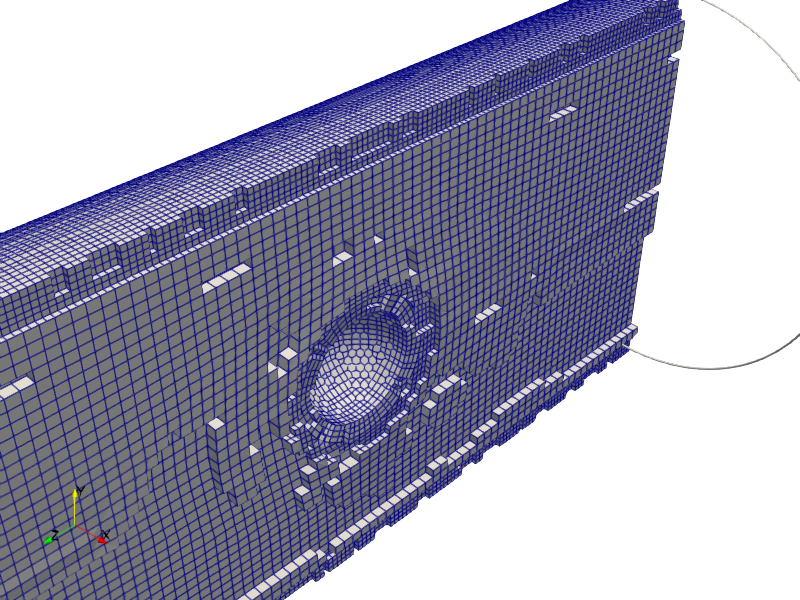
Running snappyHexMesh yields the final mesh. Below the prismatic layers around specified patches are shown:
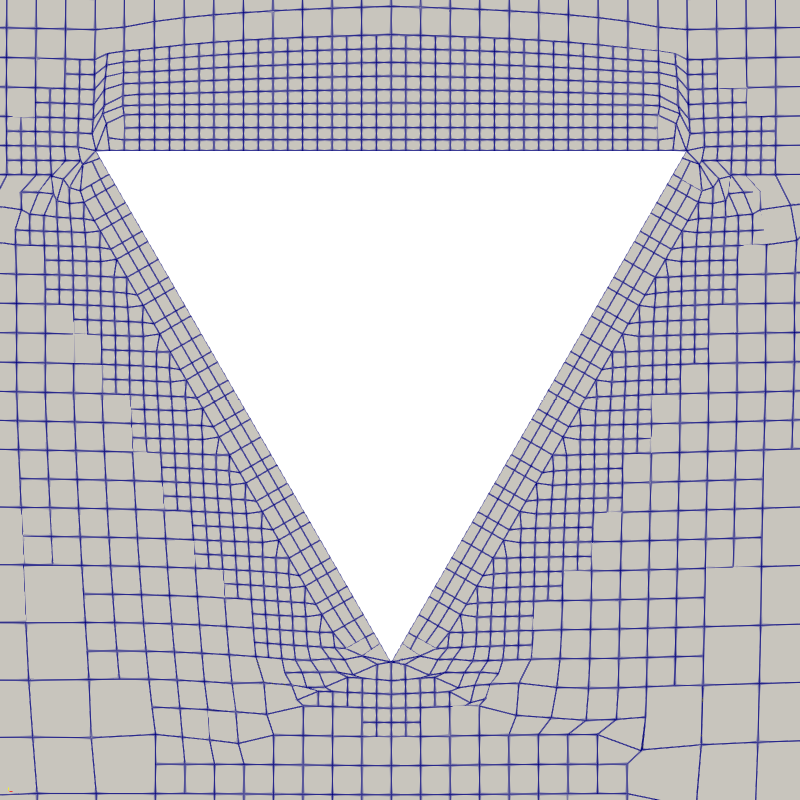
Prismatic layers around the prism

Prismatic layers at the tube patch

The mesh captures all necessary geometric features, allowing us to proceed to solver setup.

Simulation Setup

As in previous runs, we specify the inlet velocity and target Reynolds number inside a custom settings dictionary in the case root folder:

// Flow conditions
Uin 1;
Re 400;

We then compute dynamic fluid properties inside constant/transportProperties:

nu              #eval "$Uin*$D/$Re";

HPC Execution Script

When submitting the job to an HPC cluster managed by Slurm, the batch execution script looks like this:

#!/bin/bash

#SBATCH -p partition
#SBATCH -N 1
#SBATCH -n 32
#SBATCH -J VK/P
#SBATCH -t 8-00:00:00

module purge
module load openfoam/v2606

. ${WM_PROJECT_DIR:?}/bin/tools/RunFunctions

runApplication -o foamDictionary \
                       -set $SLURM_NTASKS \
                       -entry numberOfSubdomains system/decomposeParDict

[ -d processor0 ] || {
runApplication blockMesh
runApplication surfaceFeatureExtract
runApplication decomposePar
srun snappyHexMesh -overwrite -parallel > log.snappyHexMesh 2>&1
runApplication reconstructParMesh -constant
rm -rf processor*

restore0Dir
runApplication decomposePar
}

srun pimpleFoam -parallel > log 2>&1

The script configures the environment using environment modules and updates numberOfSubdomains in decomposeParDict to match the allocated Slurm tasks (32 cores). It then constructs the base mesh with blockMesh, extracts surface features, generates the mesh in parallel with snappyHexMesh, reconstructs it, and finally runs pimpleFoam across all cores.

Post-Processing & Visualization

Streamline Visualization

Once the simulation completes, we turn to visualization. Extracting the velocity field along the center-plane of the tube confirms the flow instability:
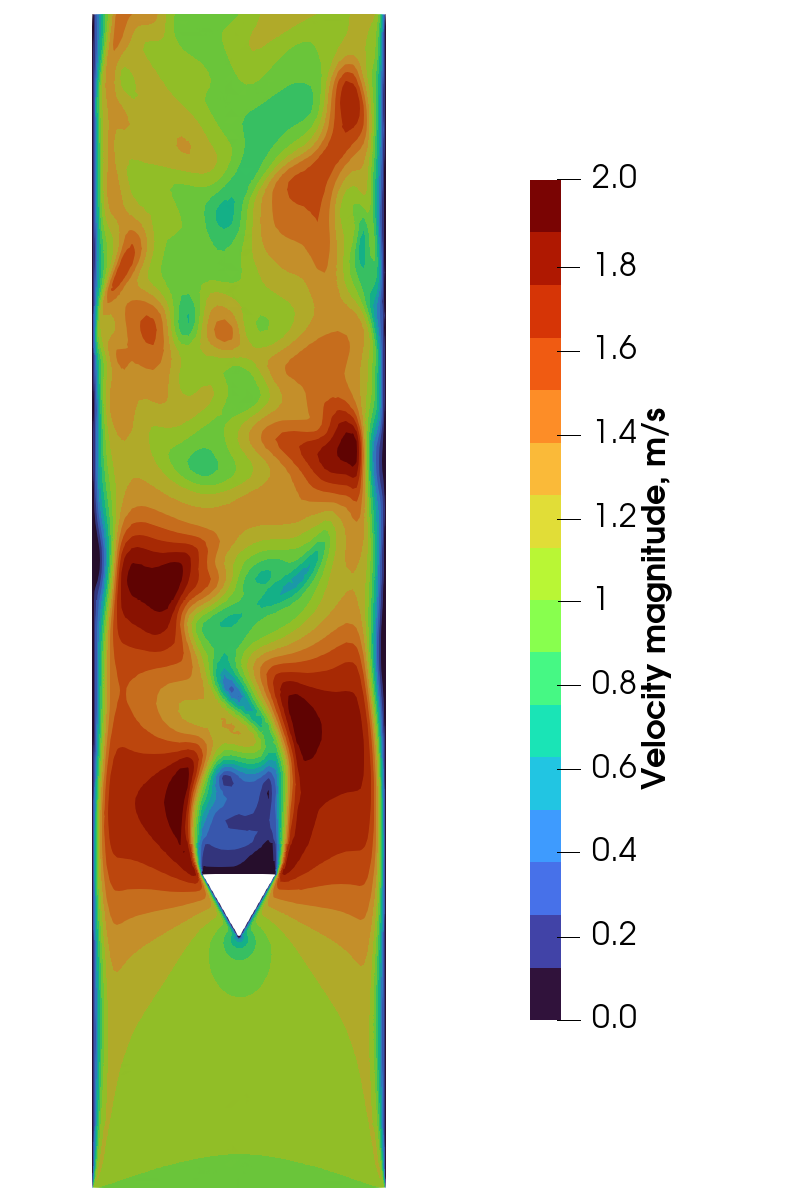
Velocity magnitude distribution in the center-plane of the
tube

While the center-plane plot confirms vortex shedding, it remains a 2D slice. To visualize the full 3D vortex structure, we can seed streamlines.

Because the inlet mesh is relatively fine, using the entire inlet patch as a seed source would generate far too many streamlines. Instead, we use a Programmed Source in ParaView to custom-seed starting points.

Assuming the inlet center is at (0, 0), we distribute seed points using polar coordinates (r*cos(theta), r*sin(theta)).

Note: If your inlet center is offset, add the corresponding translational shif.

In the Programmed Source script, we set the total point count, boundary radius, and golden angle multiplier for uniform distribution:

import vtk
from math import pi, sqrt, cos, sin

num_points = 200
radius = 0.5
golden_angle = pi * (3.0 - sqrt(5.0))

Next, we construct the VTK output objects:

output = self.GetOutput()
points = vtk.vtkPoints()
verts = vtk.vtkCellArray()

We compute point coordinates using a Fibonacci spiral distribution:

for i in range(num_points):
    r = radius * sqrt(i / float(num_points))
    theta = i * golden_angle
    
    x = r * cos(theta)
    y = r * sin(theta)
    
    point_id = points.InsertNextPoint(x, -3.99, y)

    verts.InsertNextCell(1)
    verts.InsertCellPoint(point_id)

Finally, we pass the generated points and vertices to the VTK output container:

output.SetPoints(points)
output.SetVerts(verts)

This generates a balanced distribution of seed points across the inlet plane:

Uniformly distributed points

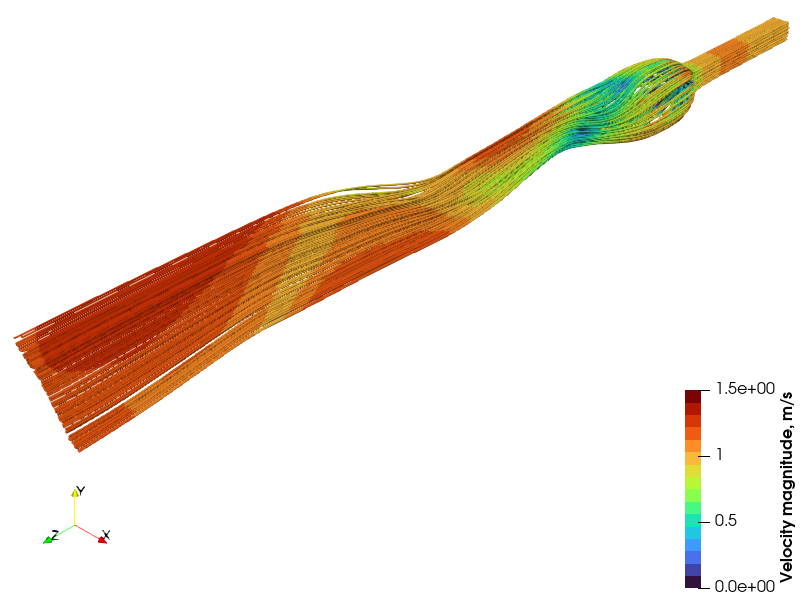
Passing these seed points to the Stream Tracer filter produces an animation that clearly reveals the 3D vortex dynamics downstream of the prism:

Q-Criterion Iso-Surfaces

Another effective method for vortex identification is the Q-criterion, defined as half the difference between the squared norms of the vorticity tensor (Ω) and the strain rate tensor (S):

Q = 0.5( ||Ω||² − ||S||² )

When Q is positive, rotational motion dominates shear deformation, making Q iso-surfaces ideal indicators of core vortex structures. In ParaView, the Q-criterion can be computed directly using the Gradient filter:
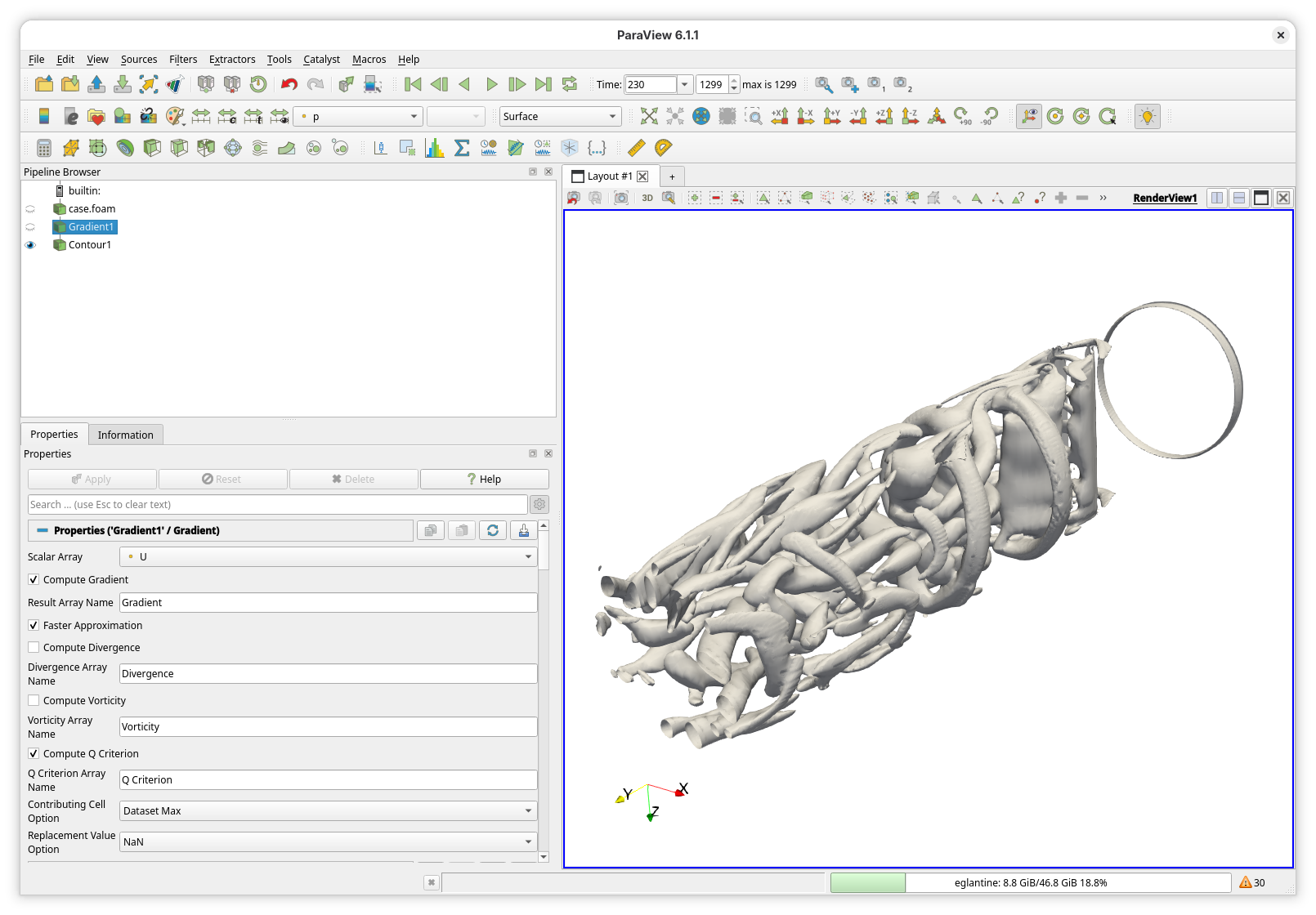
Gradient filter configuration in ParaView

Plotting the positive Q iso-surfaces gives the following flow animation:

Although both rendering techniques offer great insight, the streamline representation provides a cleaner view of flow pathlines.

As usual, all case configuration files and CAD geometries are available in the O2M showcases repository.
Thu Sep 24, 2026 : Let's put a sphere in a tube

This post is a continuation of the Von Kármán vortex street simulation series. This time, we extend the domain into 3D and generate the computational mesh using snappyHexMesh. Because the geometry is relatively straightforward, we use OpenFOAM’s native searchable surfaces instead of external STL files.

Geometry and Mesh

This simulation is a 3D extension of the classic Von Kármán vortex street. Instead of a flat 2D geometry, we use a cylindrical tube with a diameter of 4D and place a sphere of diameter D inside. We apply a uniform inlet velocity and observe the 3D development of the wake flow.

Scheme of the simulation

The mesh is generated using snappyHexMesh. Because our domain consists of basic geometric primitives, we use built-in geometry objects (searchableCylinder and searchableSphere) instead of importing external STL files:

geometry
{
    tube
    {
        type searchableCylinder;
        point1 (0 0 -100);
        point2 (0 0 100);
        radius #eval "2*$D";
    }

    sphere
    {
        type searchableSphere;
        origin (0 0 0);
        radius #eval "0.5*$D";
    }
}

For the castellated mesh stage, we refine only the surface boundaries. Because the primitives are smooth and continuous, feature edge extraction is unnecessary (even the inlet and outlet are defined by the bounding box of the background mesh):

    refinementSurfaces
    {
        sphere
        {
            level (1 1);
        }

        tube
        {
            level (1 1);
        }
    }

To resolve boundary layer gradients along the smooth surfaces, we add prismatic inflation layers:

    layers
    {
        sphere
        {
            nSurfaceLayers 3;
        }

        tube
        {
            nSurfaceLayers 3;
        }
    }

The remainder of snappyHexMeshDict uses standard parameters.

Running snappyHexMesh yields a clean mesh with a maximum non-orthogonality around 50°:

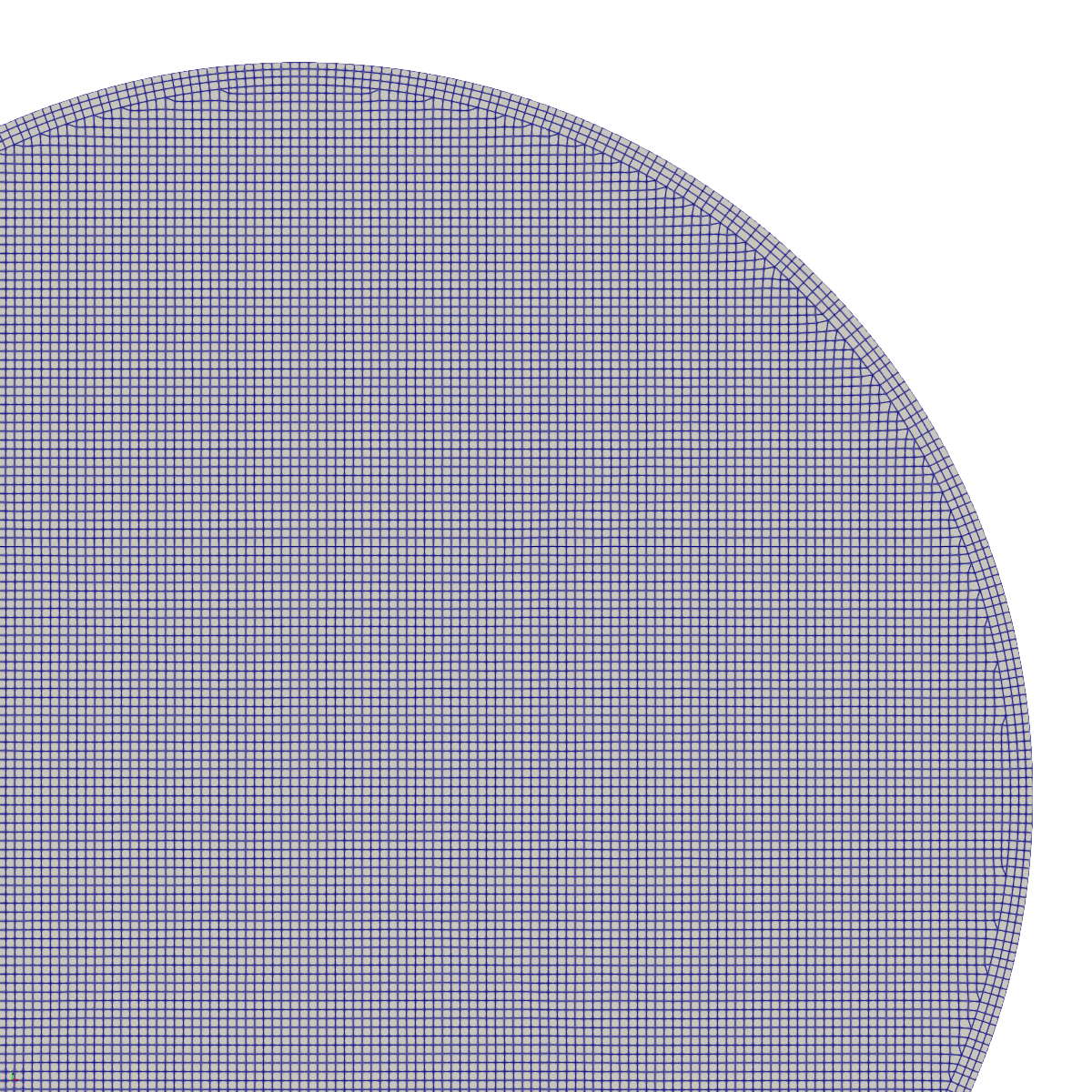
Mesh zoom around the sphere

Note: To prevent ParaView from displaying clipped boundary cells incorrectly, the Crinkle clip option is activated.

Checking geometry...
    Overall domain bounding box (-2 -2 -4) (2 2 12)
    Mesh has 3 geometric (non-empty/wedge) directions (1 1 1)
    Mesh has 3 solution (non-empty) directions (1 1 1)
    Boundary openness (-3.15769e-16 2.9073e-16 7.81195e-17) OK.
    Max cell openness = 4.07388e-16 OK.
    Max aspect ratio = 4.04672 OK.
    Minimum face area = 0.000805246. Maximum face area = 0.013633.  Face area magnitudes OK.
    Min volume = 4.0276e-05. Max volume = 0.00125246.  Total volume = 200.51.  Cell volumes OK.
    Mesh non-orthogonality Max: 50.0132 average: 7.10234
    Non-orthogonality check OK.
    Face pyramids OK.
    Max skewness = 0.377543 OK.
    Coupled point location match (average 0) OK.

Flow Conditions and Fluid Properties

As in the 2D case, we specify a constant inlet velocity (Uin) and vary the kinematic viscosity (nu) to achieve the targeted Reynolds number (Re). This is configured dynamically using the #eval entry in constant/transportProperties:

#include "<case>/settings"

transportModel Newtonian;

nu              #eval "$Uin*$D/$Re";

The variables Uin, D, and Re are defined in the settings dictionary within the case folder.

Visualizing the Flow

In 2D simulations, plotting force coefficients or mid-plane velocity contour maps gives a clear picture of the flow field. In 3D, however, mid-plane slices often fail to capture the complex vortex shedding around the sphere.

A superior visualization approach is tracing 3D streamlines.

Generating Streamlines

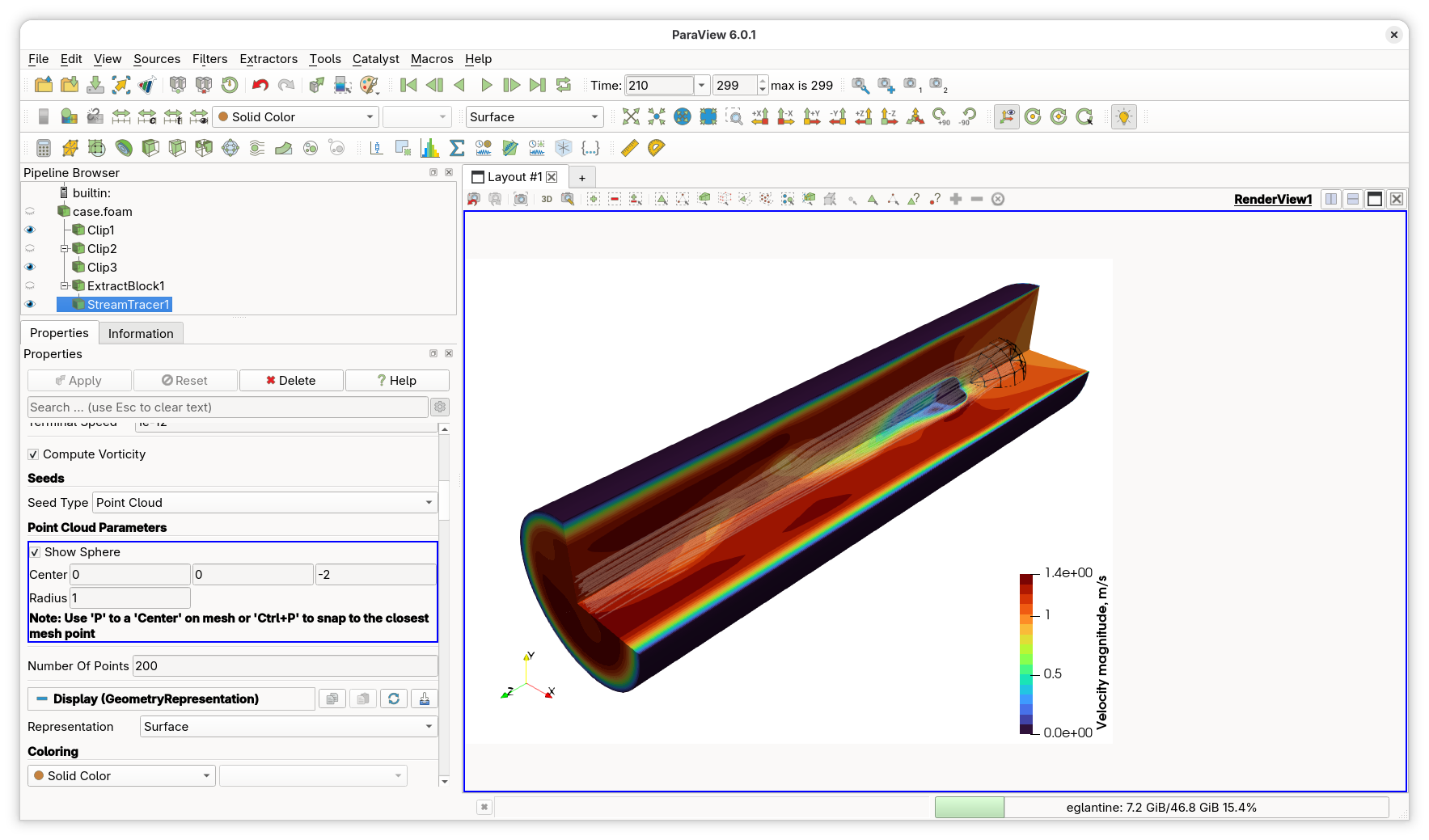
ParaView Approach

ParaView offers two primary methods for seeding streamlines:

  1. Stream Tracer: Seeds points using basic geometric primitives (e.g., points, lines, or spheres).
  2. Stream Tracer With Custom Source: Uses an arbitrary source geometry to define seed point locations.

Stream tracer

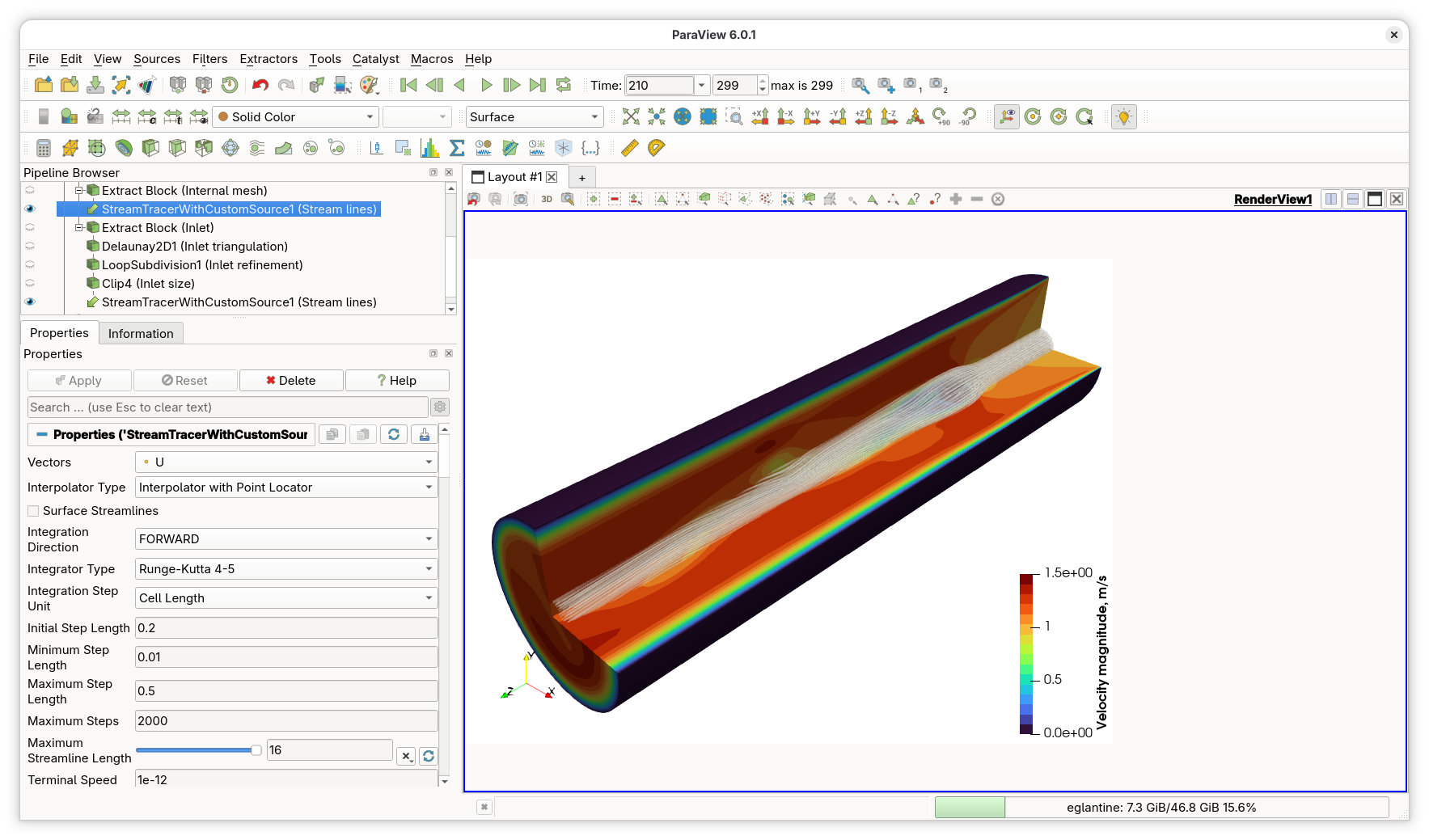
To study the flow structures originating directly ahead of the obstacle, it is useful to seed streamlines within a circular area on the inlet plane corresponding to the sphere’s projection. We can create this custom seeding source in ParaView using the following pipeline:

  1. Extract Block: Isolates the inlet boundary patch.
  2. Delaunay 2D: Triangulates the patch geometry to prepare it for refinement.
  3. Loop Subdivision: Refines the triangulated surface mesh.
  4. Clip (Cylinder): Clips the refined patch to create a circular seeding disk of the desired radius.

Stream tracer with Custom Source

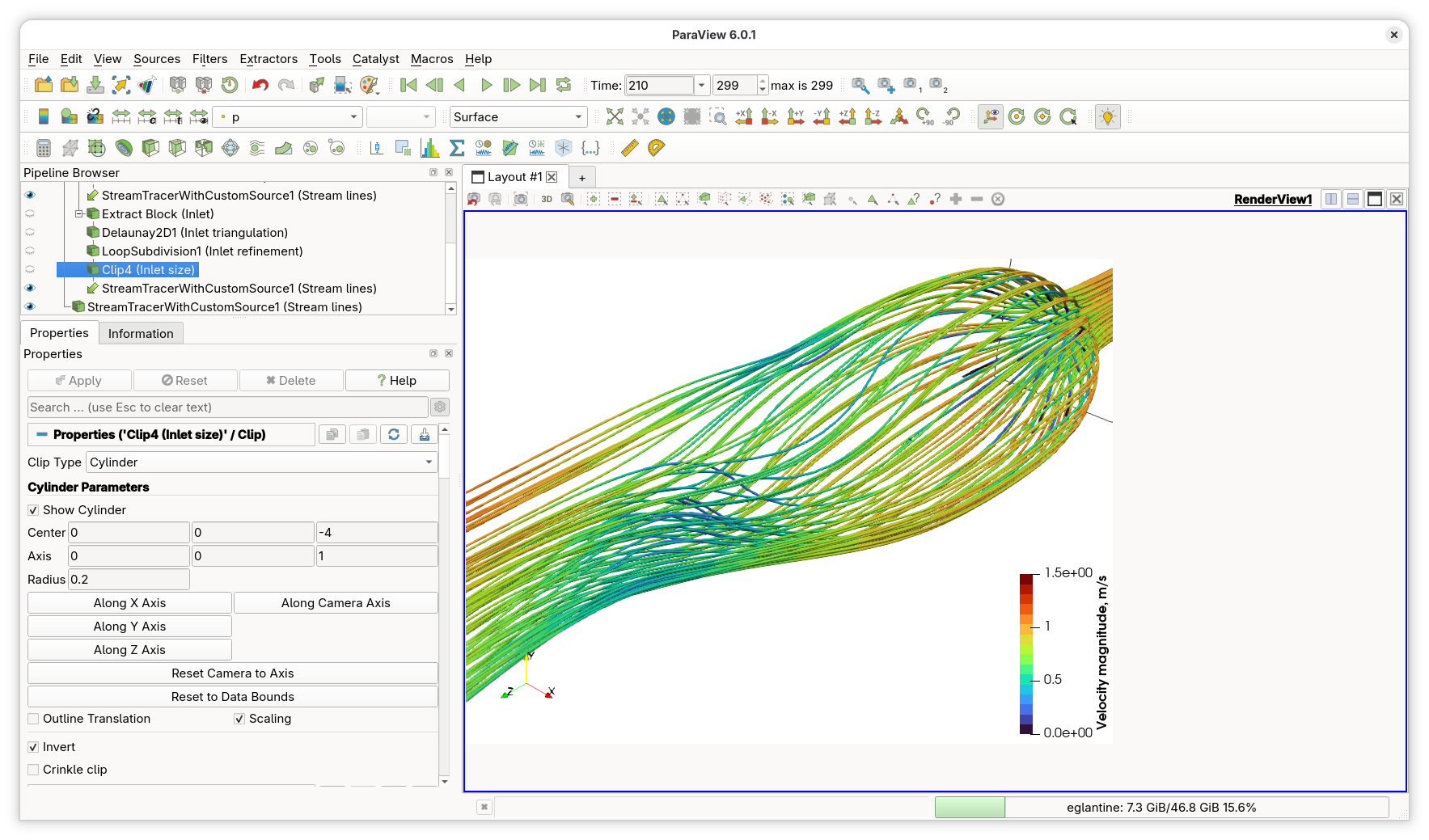
By shrinking the radius of this custom source, we can clearly visualize the intricate, swirling streamline patterns forming in the sphere’s wake:

Stream tracer with Custom Source zoom

Finally, applying the Stream Tracer filter produces smooth flow animations:

OpenFOAM streamLine Function Object

Streamlines can also be computed directly during runtime or post-processing using OpenFOAM’s streamLine function object. The function object seeds Lagrangian particles, tracks their trajectories through the velocity field, and writes the resulting paths in VTK format.

However, built-in seeding options are somewhat limited. The closest native option is patchSeed, which distributes a set number of points across an entire boundary patch. If applied directly to our inlet patch, patchSeed generates many uninteresting, straight streamlines near the tube outer walls.

To restrict seeding to a specific region, we need a faceZoneSeed method. By combining this with topoSet, we can define a small sub-zone on the inlet.

Implementing faceZoneSeedSet

Inspecting OpenFOAM’s patchSeedSet class reveals that it relies on triangulatedPatch to distribute seed points across patch faces. Since a faceZone can be evaluated similarly, we can easily implement a custom faceZoneSeedSet class.

We adapt patchSeedSet by replacing patchSet_ with faceZoneName_ and dropping selectedLocations_:

class faceZoneSeedSet
:
    public sampledSet
{
    // Private Data
        //- Face zone name to sample
        const word faceZoneName_;
        
        //- Maximum number of zone faces to seed
        const label maxPoints_;
        
        //- Random number generator
        autoPtr<Random> rndGenPtr_;
        
    // Private Member Functions
        //- Calculate distribution points on the face zone
        void calcZoneSamples
        (
            const label nAvailable,
            const label nZonePoints,
            DynamicList<point>& samplingPts,
            DynamicList<label>& samplingFaces,
            DynamicList<label>& samplingSegments,
            DynamicList<scalar>& samplingCurveDist
        );

public:
    //- Runtime type information
    TypeName("faceZoneSeed");
    
    // Constructors
    faceZoneSeedSet
    (
        const word& name,
        const polyMesh& mesh,
        const meshSearch& searchEngine,
        const dictionary& dict
    );
};

Seed positioning occurs inside calcZoneSamples, which mimics calcPatchSamples from patchSeedSet:

void Foam::faceZoneSeedSet::calcZoneSamples
(
    const label nAvailable,
    const label nZonePoints,
    DynamicList<point>& samplingPts,
    DynamicList<label>& samplingFaces,
    DynamicList<label>& samplingSegments,
    DynamicList<scalar>& samplingCurveDist
)
{
    if (nAvailable < 1) return;

    Random& rndGen = *rndGenPtr_;

    globalIndex globalSampleNumbers(nAvailable);
    label nGlobalPatchPoints = returnReduce(nZonePoints, sumOp<label>());

    point pt;
    label facei;

    const faceZone& fz = mesh().faceZones()[faceZoneName_];
    triangulatedFaceZone tfz(fz);
    
    const label np = nAvailable * fz.size() / scalar(nGlobalPatchPoints);
    for (label i = 0; i < np; ++i)
    {
        tfz.randomLocalPoint(rndGen, pt, facei);
    
        samplingPts.append(pt);
        samplingFaces.append(fz[facei]);
        samplingSegments.append(0);
        samplingCurveDist.append(globalSampleNumbers.toGlobal(i));
    }
}

The algorithm calls randomLocalPoint via triangulatedFaceZone. Since streamline particles reside in cell volumes, we map boundary faces to interior cells using faceOwner():

labelList samplingCells(samplingFaces.size(), -1);

forAll(samplingFaces, i)
{
    samplingCells[i] = mesh().faceOwner()[samplingFaces[i]];
}

The complete source code for the classes can be found in the show cases repository.

Configuration & Results

We configure topoSetDict to define the target faceZone (smallInlet):

actions
(
  {
    name f0;
    type faceSet;
    action new;
    source patchToFace;
    sourceInfo
    {
      patch inlet;
    }
  }

  {
    name f0;
    type faceSet;
    action subset;
    source cylinderToFace;
    sourceInfo
    {
      point1 (0 0 -100);
      point2 (0 0 100);
      radius 0.2;
    }
  }

  {
    name smallInlet;
    type faceZoneSet;
    action new;
    source setToFaceZone;
    sourceInfo
    {
      faceSet f0;
    }
  }
);

And the following streamLine function object configuration:

type        streamLine;
libs        (fieldFunctionObjects libfaceZoneSeed);
setFormat   vtk;

direction   forward;
fields      (p U);
lifeTime    10000;
nSubCycle   5;
cloud       particleTracks;

seedSampleSet
{
    type        faceZoneSeed;
    axis        xyz;
    zone        smallInlet;
    maxPoints   200;
}

Executing the function object yields the following streamline trajectories:

streamLine function object output

Note: Because the background inlet mesh is relatively coarse, the faceZone seed boundary appears blocky/square. In ParaView, refining and triangulating the extracted patch prior to clipping produces a significantly smoother circular seed profile.

The case files can be found in the show cases repository.

Fri Sep 18, 2026 : Simulating Fridge Cooling Dynamics with OpenFOAM

Motivation

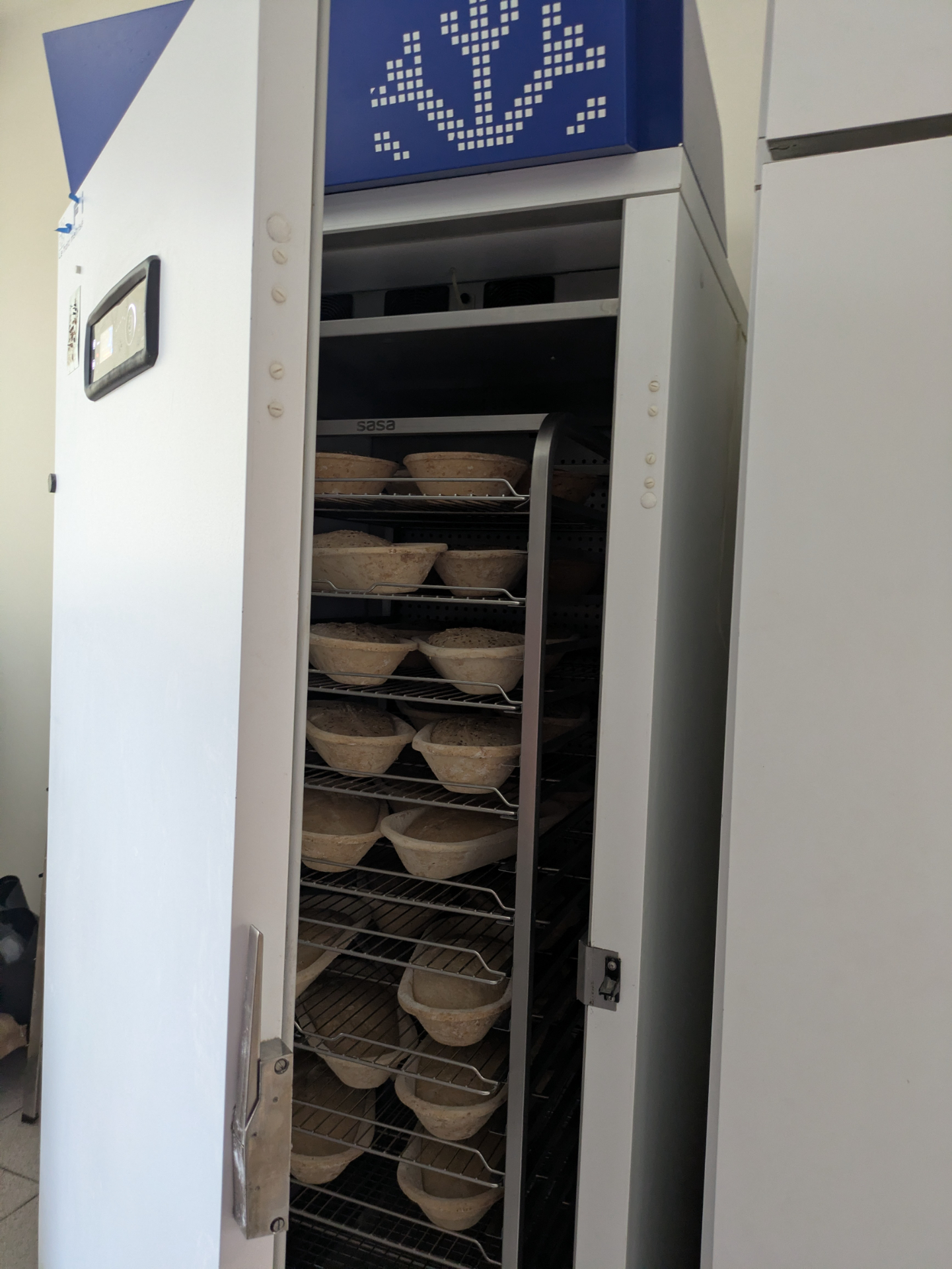
Once upon a time, my baker friends asked me: “Does it take longer for the temperature of an empty fridge to become uniform than a full one?” While the question initially sounded counterintuitive (a full fridge requires removing far more stored thermal energy), I realized it would make a great illustrative simulation to showcase the capabilities of conjugate heat transfer (CHT) solvers in OpenFOAM.

To answer this, we will run two simulations: an empty fridge and a fridge fitted with a shelf rack.

Refrigerators

Empty fridge

The empty fridge scenario is the simplest setup; we use the buoyantBoussinesqPimpleFoam solver. Because the fridge is a cuboid measuring 0.85 × 0.66 × 1.85 m, we use an orthogonal mesh with a cell size of 1 cm. A quick literature review indicates that industrial bakery refrigerators typically have a constant wall heat transfer coefficient of 6 W/(m2K), so we apply the externalWallHeatFluxTemperature boundary condition across all walls. The ambient external temperature is set to 5 °C (278.15 K) with an initial internal temperature of 20 °C. While we could assign varied heat transfer coefficients to different walls for precision, using a uniform value works well for a first iteration.

walls
{
    type            externalWallHeatFluxTemperature;
    mode            coefficient;
    Ta              constant 278.15;
    h               constant 6.0;
    kappaMethod     function;
    kappaValue      constant 25.87e-3;
    alphaValue      constant 2.135855960582023e-05;
    value           $internalField;
}

To record internal temperatures, we place numerical probes at various heights along the vertical centerline.

probes
{
    type    probes;
    libs    (sampling);

    name    probes;

    writeControl   adjustableRunTime;
    writeInterval  0.1;

    fields (T);

    probeLocations
    (
        ( 42.5E-2 33E-2   5e-2)
        ( 42.5E-2 33E-2  15e-2)
        ...
        ( 42.5E-2 33E-2 155e-2)
        ( 42.5E-2 33E-2 165e-2)
        ( 42.5E-2 33E-2 175e-2)
    );
}

In the empty fridge, cold air near the refrigerated walls sinks due to buoyancy. This forms a large recirculation loop that brings the internal air temperature to a quasi-uniform state (dropping from 20 °C down to 5 °C) in roughly 10 minutes.

Convection in the empty fridge

Temperature evolution

This timeframe aligns closely with real-world observations.

Fridge with a shelf

Creating the shelf geometry

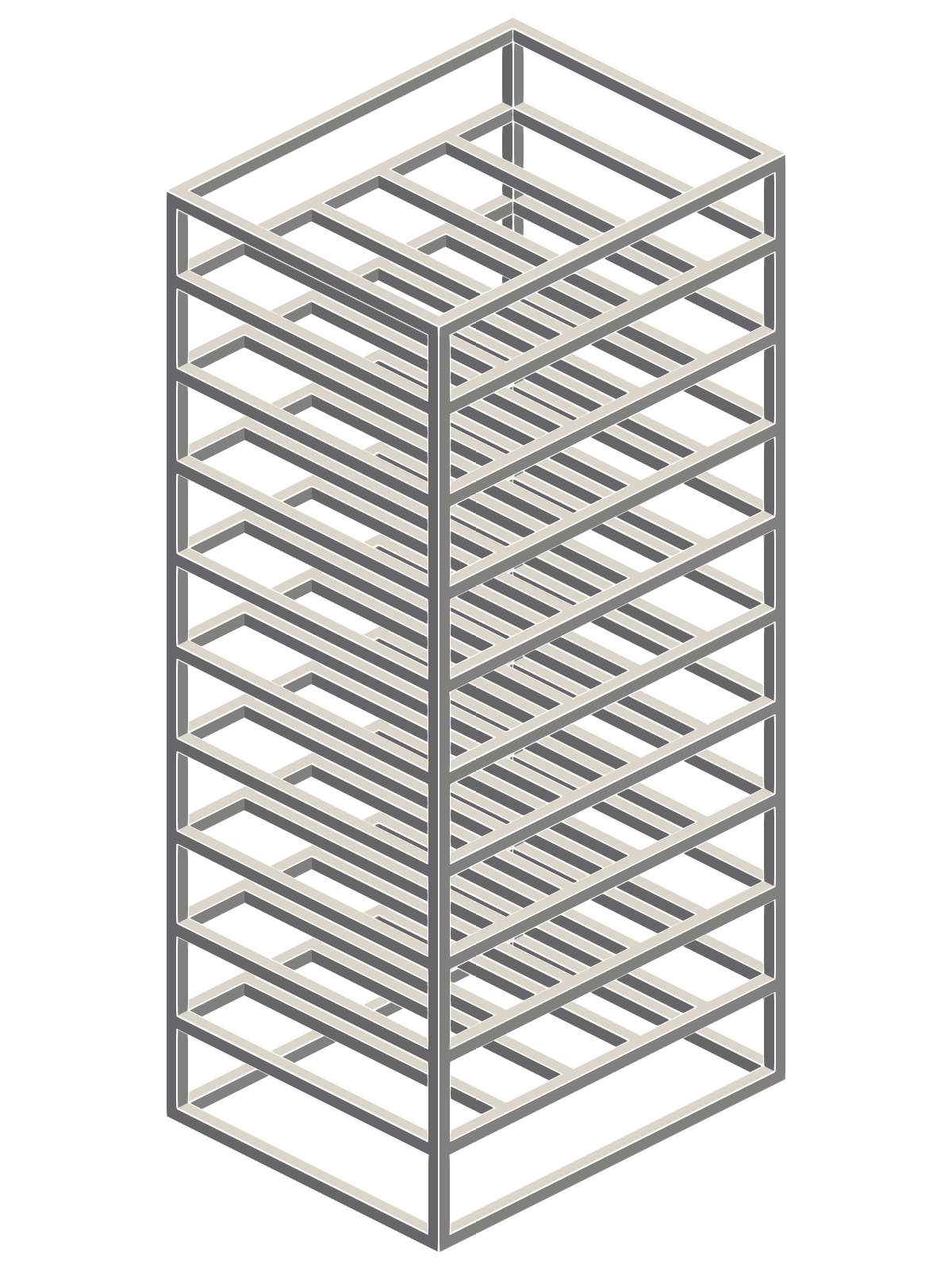
The shelf is modeled as a assembly of hollow stainless steel bars: four vertical posts, eight horizontal perimeter bars at the top and bottom, and 20 side-rails (10 per side) for holding trays.

Given the repetitive structure, OpenSCAD was the ideal tool for generating this geometry. First, we set the parameters:

dx = 0.8;
dy = 0.624;
dz = 1.8;

dh = 18e-2;

thickness = 2e-3;
width = 2.54E-2;

We generate the outer shell of the rack and subtract a slightly smaller inner volume to model the hollow interior.


    cube([dx, width, width]);
    translate([0, dy, 0])
        cube([dx, width, width]);
    translate([0, dy, dz - width])
        cube([dx, width, width]);
    translate([0, 0, dz - width])
        cube([dx, width, width]);
        
    cube([width, dy, width]);
    translate([dx, 0, 0]) cube([width, dy, width]);
    translate([dx, 0, dz - width]) cube([width, dy, width]);
    translate([0, 0, dz - width]) cube([width, dy, width]);
    
    for (i = [1:9]) {
        translate([0, 0, dh*i]) cube([dx, width, width]);
        translate([0, dy, dh*i]) cube([dx, width, width]);
    }
    
    for (i = [0:5]) {
        for (j = [1:9]) {
            translate([dw*i, 0, dh*j])
                cube([width, dy, width]);
        }
    }
}

union() {
    translate([thickness, thickness, thickness])
        cube([width_in, width_in, dz - 2*thickness]);

    translate([thickness, dy + thickness, thickness])
        cube([width_in, width_in, dz - 2*thickness]);

    translate([dx + thickness, dy + thickness, thickness])
        cube([width_in, width_in, dz - 2*thickness]);

    translate([dx + thickness, thickness, thickness])
        cube([width_in, width_in, dz - 2*thickness]);

    translate([thickness, thickness, thickness])
        cube([dx, width_in, width_in]);
    translate([thickness, dy + thickness, thickness])
        cube([dx, width_in, width_in]);
    translate([thickness, dy + thickness, dz - width_in - thickness])
        cube([dx, width_in, width_in]);
    translate([thickness, thickness, dz - width_in - thickness])
        cube([dx, width_in, width_in]);
       
    translate([thickness, thickness, thickness])
        cube([width_in, dy, width_in]);
    translate([dx + thickness, thickness, thickness])
        cube([width_in, dy, width_in]);
    translate([dx + thickness, thickness, dz - width_in - thickness])
        cube([width_in, dy, width_in]);
    translate([thickness, thickness, dz - width_in - thickness])
        cube([width_in, dy, width_in]);
    
    for (i = [1:9]) {
        translate([thickness, thickness, dh*i + thickness]) cube([dx, width_in, width_in]);
        translate([thickness, dy + thickness, dh*i + thickness]) cube([dx, width_in, width_in]);
    }
    
    for (i = [0:5]) {
        for (j = [1:9]) {
            translate([dw*i + thickness, thickness, dh*j + thickness])
                cube([width_in, dy, width_in]);
        }
    }
}
}

Exporting to STL yields the final rack structure:

Full rack geometry

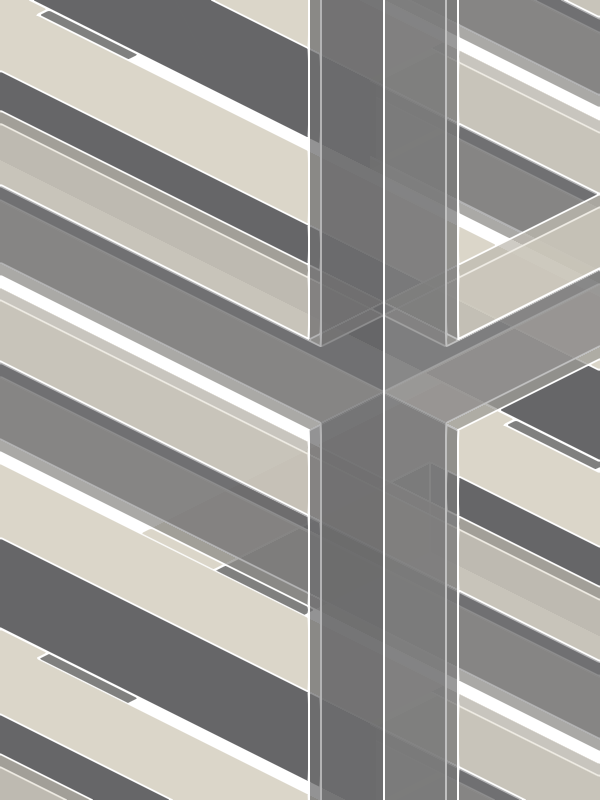
Because the rack is hollow, the image below illustrates the outer surface in beige, the internal cavities of the rails in gray, and the STL mesh boundaries in white:

The rack internal structure

Implementing Multi-Region Convergence Controls

When writing custom solvers, I typically include convergence controls regardless of whether they are single- or multi-region. Surprisingly, standard OpenFOAM CHT solvers lack built-in convergence controls. SIMPLE-based solvers default to running a number of time steps specified by endTime, while transient PIMPLE solvers execute a fixed count of outer iterations.

One quick workaround is setting a high outer iteration limit to ensure physical convergence, but implementing native convergence controls sounded like a lot more fun - and far more efficient, as it lets us stop iterations as soon as convergence is reached.

OpenFOAM reuses code by generating field collections for each region. On every iteration, it binds these regional fields to standard variable names (e.g., in UEqn.H). For steady-state SIMPLE solvers, we can adapt this design: instantiate a simpleControl object per region, iterate through them at the end of every SIMPLE step, and terminate the run once all regions satisfy convergence criteria.

For transient PIMPLE solvers, execution is slightly more nuanced. The solver iterates through outer correctors within each time step. Once residual metrics fall below configured tolerances, the step is deemed converged, and a final corrector pass runs using dedicated linear solver settings (typically zero relative tolerance and tight absolute tolerances) to ensure numerical stability.

Rather than manually querying algorithm flags inside chtMultiRegionFoam:

for (int oCorr=0; oCorr<nOuterCorr; ++oCorr)
{
	const bool finalIter = (oCorr == nOuterCorr-1);
	...
}

We refactor the loop to mirror standard single-region solvers like pimpleFoam:

while (pimple.loop())
{
	...
	while (pimple.correct())
    {
		...
    }
}

The underlying class design includes:

  1. Region Solution Control: Evaluates local residual convergence.
  2. Multi-Region Solution Control: Coordinates regional controls, checking if all regions have converged to either advance time steps or conclude the run.

SIMPLE Solution Controls

Implementation for the SIMPLE algorithm is straightforward: we store simpleControl instances in a list and invoke criteriaSatisfied(). Once fulfilled, solver execution halts.

The alterations to chtMultiRegionSimpleFoam are minimal. We replace:

while (runTime.loop())
{
	...
}

with

while (msimple.loop())
{
	...
}

Additionally, rather than manually constructing energy looping loops, we delegate iteration directly to msimple.energyCoupling().

PIMPLE Solution Controls

For PIMPLE multi-region control, pimpleControl instances manage individual residual targets. However, mpimple.loop() must evaluate global status and trigger a final corrector pass once criteria across all regions are met.

The solver loop is simplified accordingly: outer correctors use the multi-region interface, which dispatches controls to inner and non-orthogonal corrector routines.

The full solver modifications are available on GitLab: https://gitlab.com/alexey.matveichev/openfoam

Cooling behavior with the shelf

With dynamic convergence verification operational, we can confidently run the rack simulation.

We mesh the geometry using snappyHexMesh. To minimize mesh non-orthogonality, we stop at the castellated stage. To accurately capture the thin stainless steel walls, the mesh is refined around edges and faces, applying two refinement levels relative to the 1 cm background grid:

features
(
	{
        file "echelle.extendedFeatureEdgeMesh";
        level 2;
    }
);

refinementSurfaces
{
    echelle
    {
        level (2 2);
    }
}

We define distinct domain regions using locationsInMesh:

locationsInMesh
(
    (( 1e-4 1e-4  1e-4) air)
    (( 0.013  0.006  0.026) inox)
    (( 0.01600001  0.01000001  0.03000001) air-inside-echelle)
);

This creates three region zones: main cabinet air, the solid rack frame, and internal hollow air pockets. Running splitMeshRegions converts these cell zones into individual regional meshes. Off-grid coordinate values prevent points from falling directly on boundary faces.

To prevent numerical difficulties, the stagnant air enclosed inside the hollow rack profiles is modeled as a solid. Because OpenFOAM normalizes residuals using field variations, fully converged yet uniform fluid zones can produce lingering normalized residuals near ∼1.0. Treating static internal air pockets as solids circumvents unneeded momentum calculation overhead.

Initial temperatures for both the air and the shelf are set to 20 °C, matching the empty fridge thermal parameters.

Simulation results

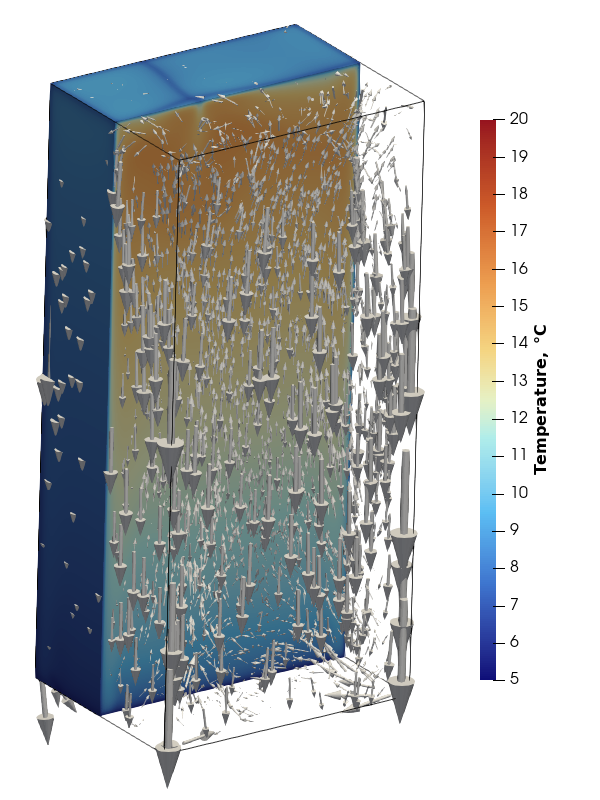
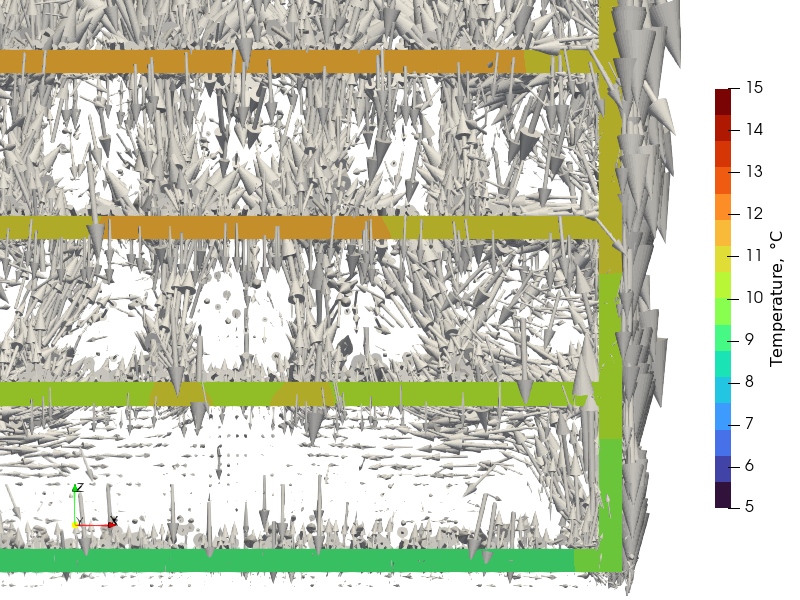
Inserting the rack significantly alters cabinet flow dynamics. The single macro-recirculation cell breaks apart into numerous isolated localized loops constrained between rack shelves. Downward flow persists along cold outer boundary walls, but buoyancy forces drive localized upward currents along the shelf’s internal frame.

Vector plot of velocity around the rack

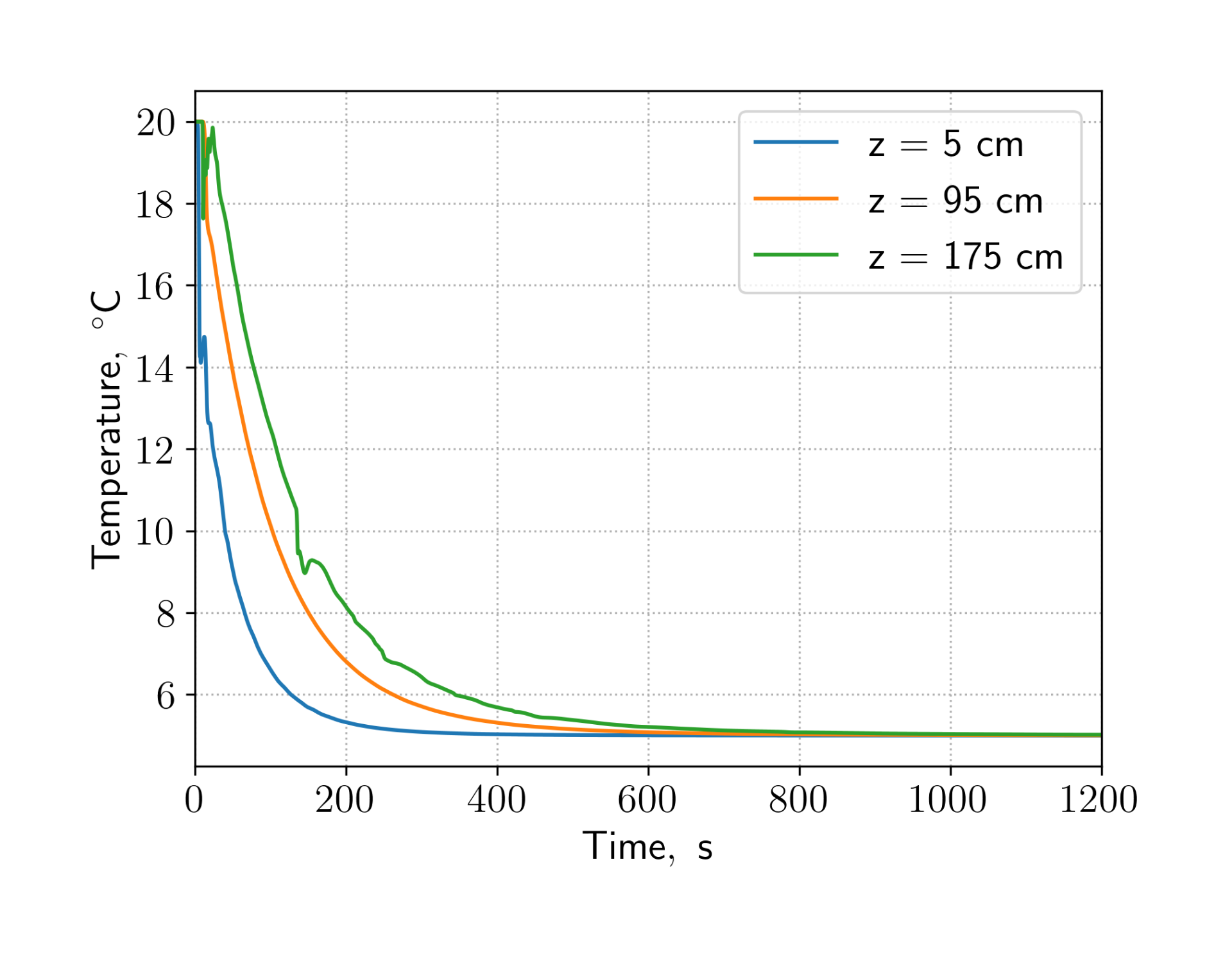
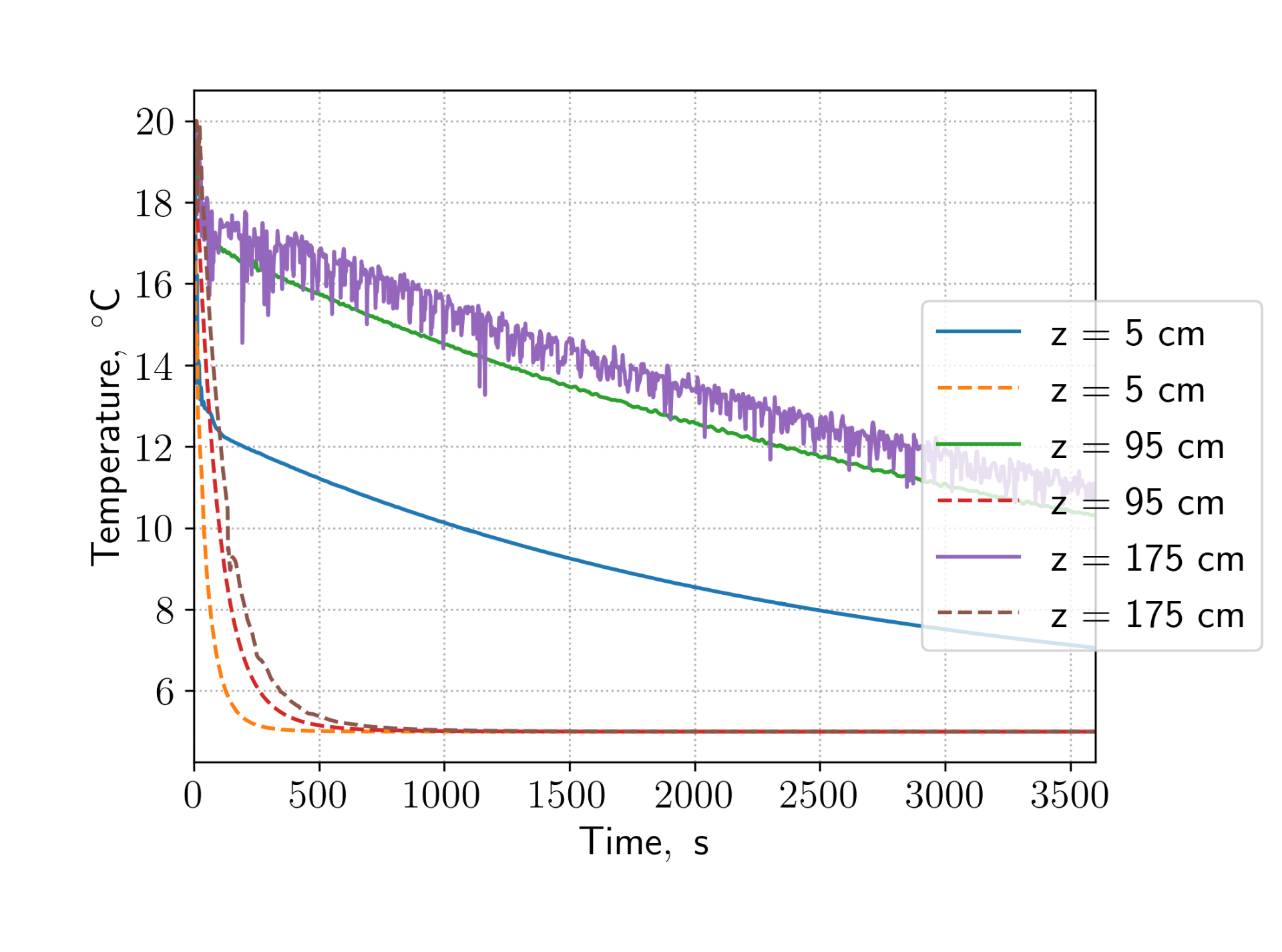
This compartmentalized flow severely slows overall heat removal. Cooling is delayed not only by the additional thermal mass of the metal, but primarily by the disruption of free-convective mixing. The bottom zone cools somewhat faster due to direct contact with the base floor without horizontal obstruction. Near the top shelf, minor temperature fluctuations occur due to competing heat fluxes: wall cooling pulling energy out, balanced against rising warm plumes from the steel frame.

Temperature evolution plot

Ultimately, introducing structural shelves creates significant vertical temperature gradients, which could negatively impact commercial baking processes where consistent dough proofing temperatures are required.

Does Pre-Cooling Help?

To test if pre-chilling mitigates flow disruption, we simulated pre-cooling the empty fridge to 5 °C for 10 minutes before inserting a 20 °C shelf.

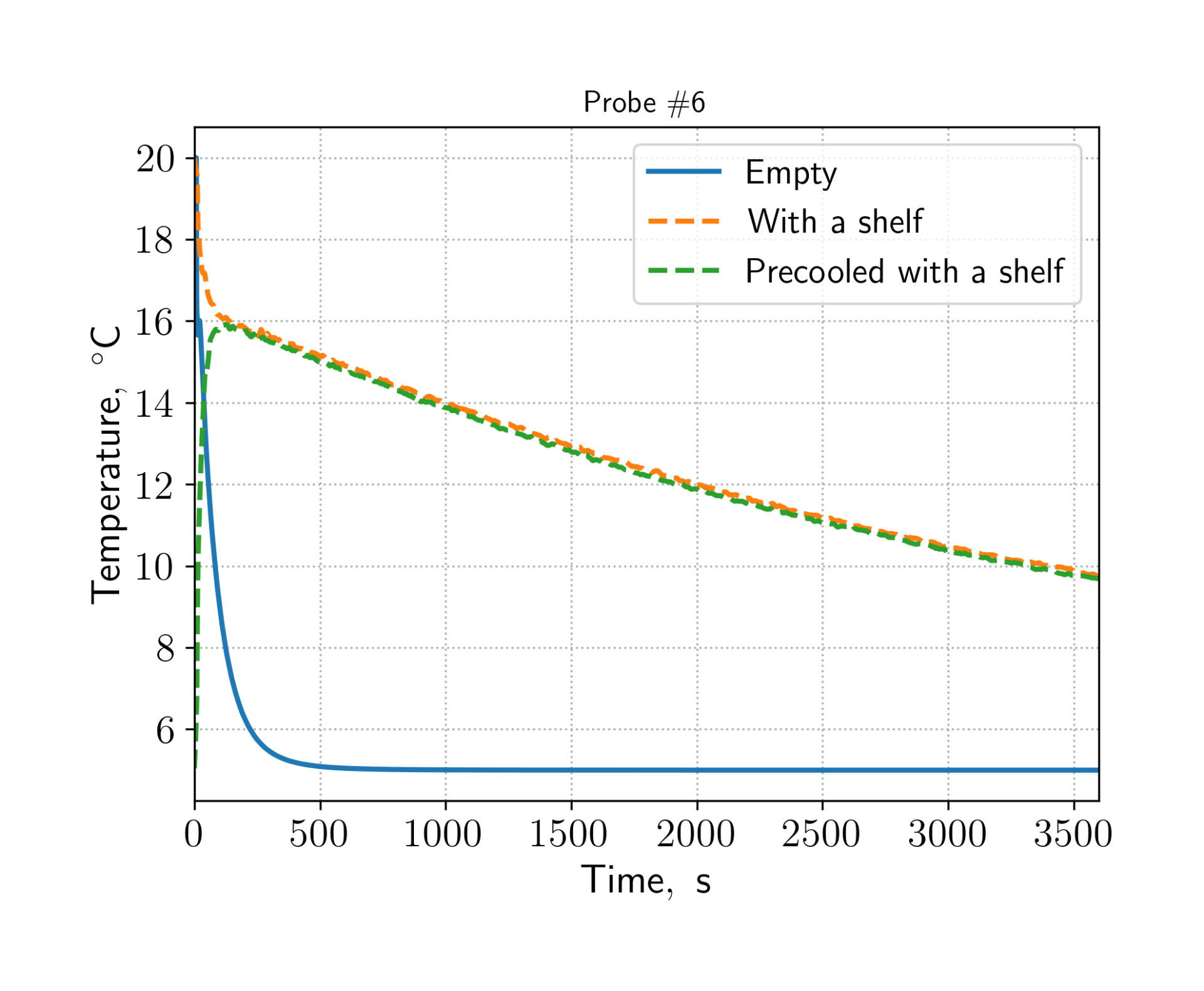
The results show that pre-cooling provides virtually no long-term benefit. Heat transfer from the warm rack rapidly warms localized air cells, and within 60 seconds, thermal profiles match those of an initially uncooled cabinet.

Comparison of the temperature evolution of different setups

You can find the case files in the show case repo: https://code.o2m.solutions/o2m/show-cases/src/branch/trunk/fridge