Blog : Prism in a Tube
This simulation is a continuation of the Von Kármán vortex street series. This time, instead of a sphere, we place a prism inside the cylinder.
Since OpenFOAM does not provide a built-in searchable prism shape, we have to use an STL file. We can approach geometry specification in two ways:
- Create a prism and embed it inside a searchableCylinder.
- Create the entire combined geometry in CAD.
The second approach gives us much better control over sharp edges.
The geometry was created in FreeCAD and exported as an STL file. Before configuring snappyHexMesh, we need to prepare the surface mesh.
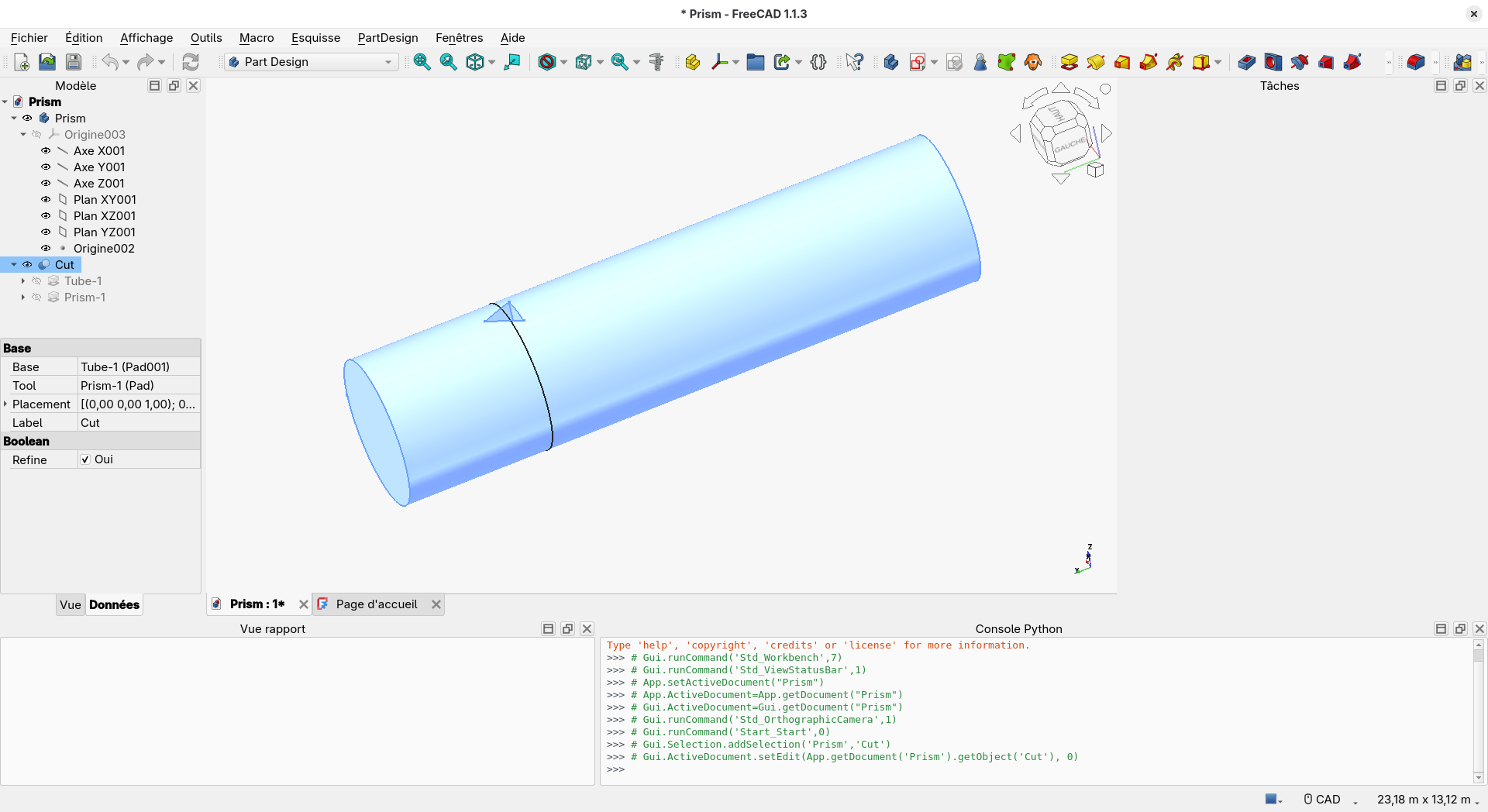
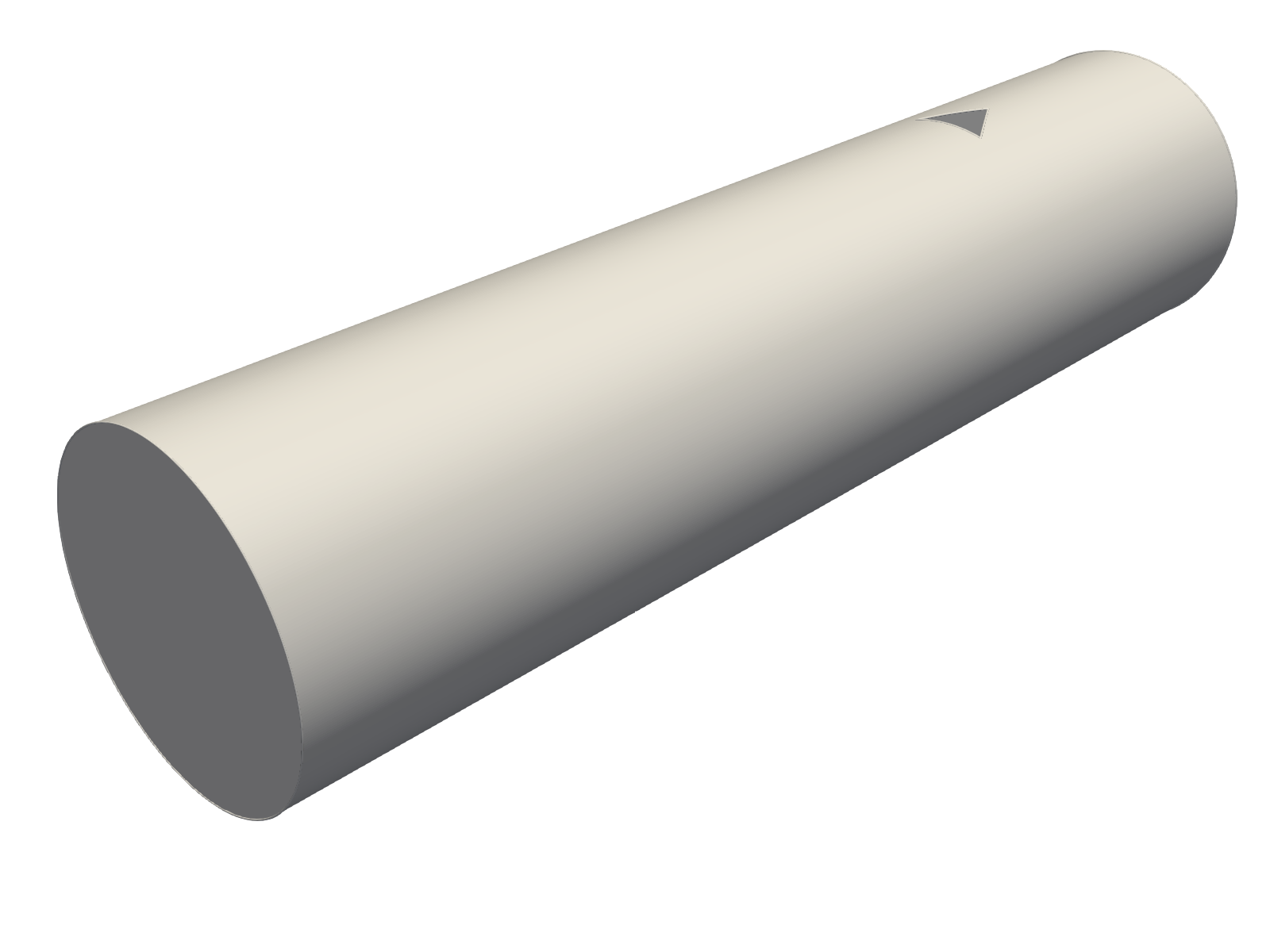
snappyHexMesh can process multi-solid STL files, so the first step is to split
the STL into separate surfaces. This simplifies mesh snapping and prismatic
boundary layer generation, as every surface in the STL becomes either smooth
(the cylinder) or flat (all other faces).
To split the STL into distinct surfaces, we use the surfacePatch utility. This
utility is an evolution of surfaceAutoPatch and allows us to specify surfaces
and split algorithms via a surfacePatchDict file:
geometry
{
    TubePrism.stl
    {
        type triSurfaceMesh;
    }
};

surfaces
{
    TubePrism.stl
    {
        type        autoPatch;
        featureAngle    30;
    }
}
Running the utility generates a TubePrism_patched.stl file containing multiple
solids:
solid Tube
 facet normal -0.999975 -1.57288e-18 0.00708072
  outer loop
   vertex -1.9998 12 0.0282381
   vertex -2 12 2.66454e-15
   vertex -2 -4 -8.88178e-16
  endloop
 endfacet
 ...
endsolid Tube
solid Outlet
...
endsolid Outlet
...
solid Prism-3
...
endsolid Prism-3
Note: By default, surfacePatch names solids using a generic zone* pattern. The Tube, Outlet, and Prism-3 patch names were assigned manually by editing the STL text file.
After splitting, the STL file contains 6 distinct solids: the tube wall, inlet, outlet, and the three faces of the prism.
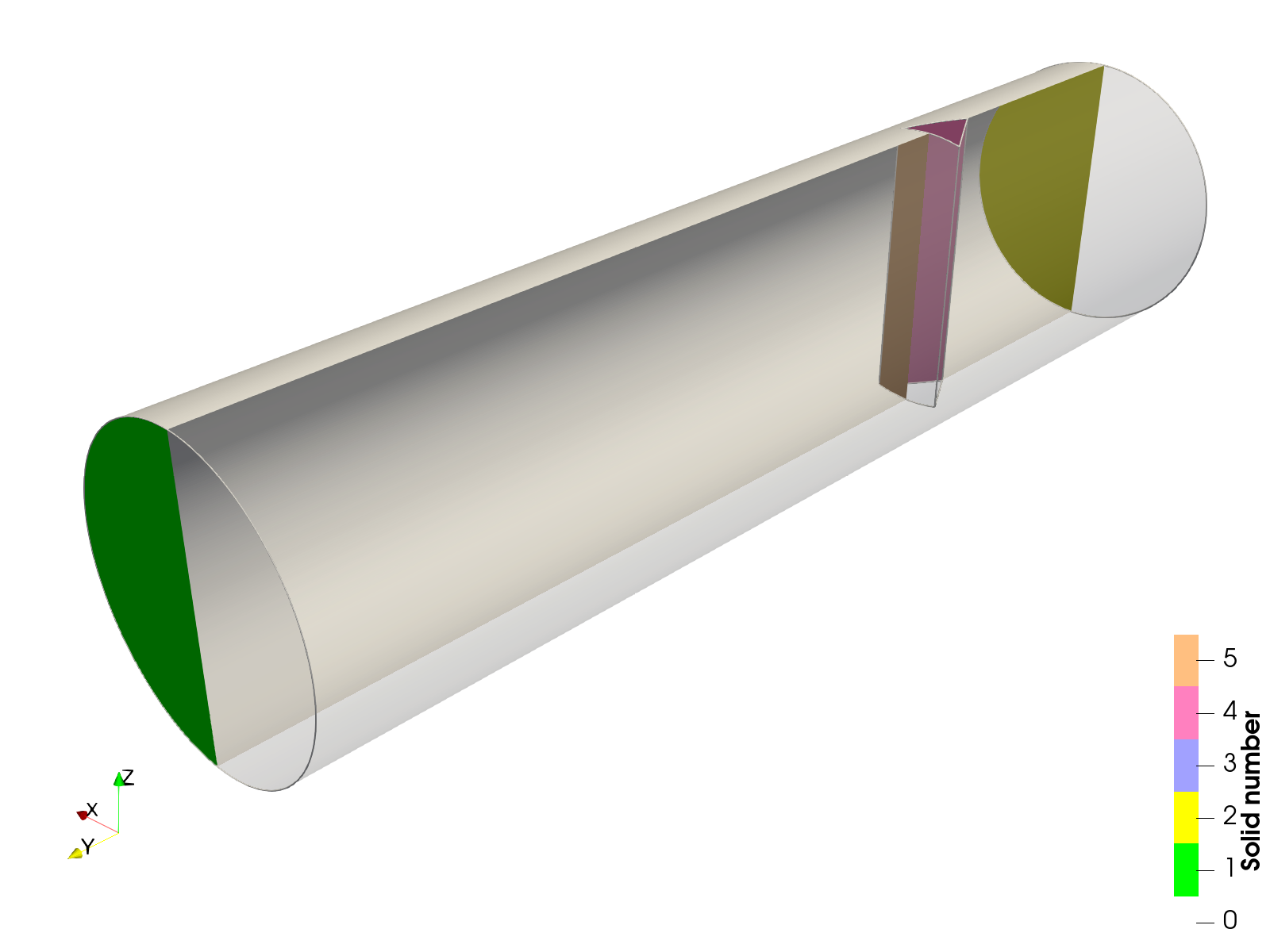
Extracting Feature Edges
The next preparation step for mesh generation is extracting explicit feature
edges using the surfaceFeatureExtract utility.
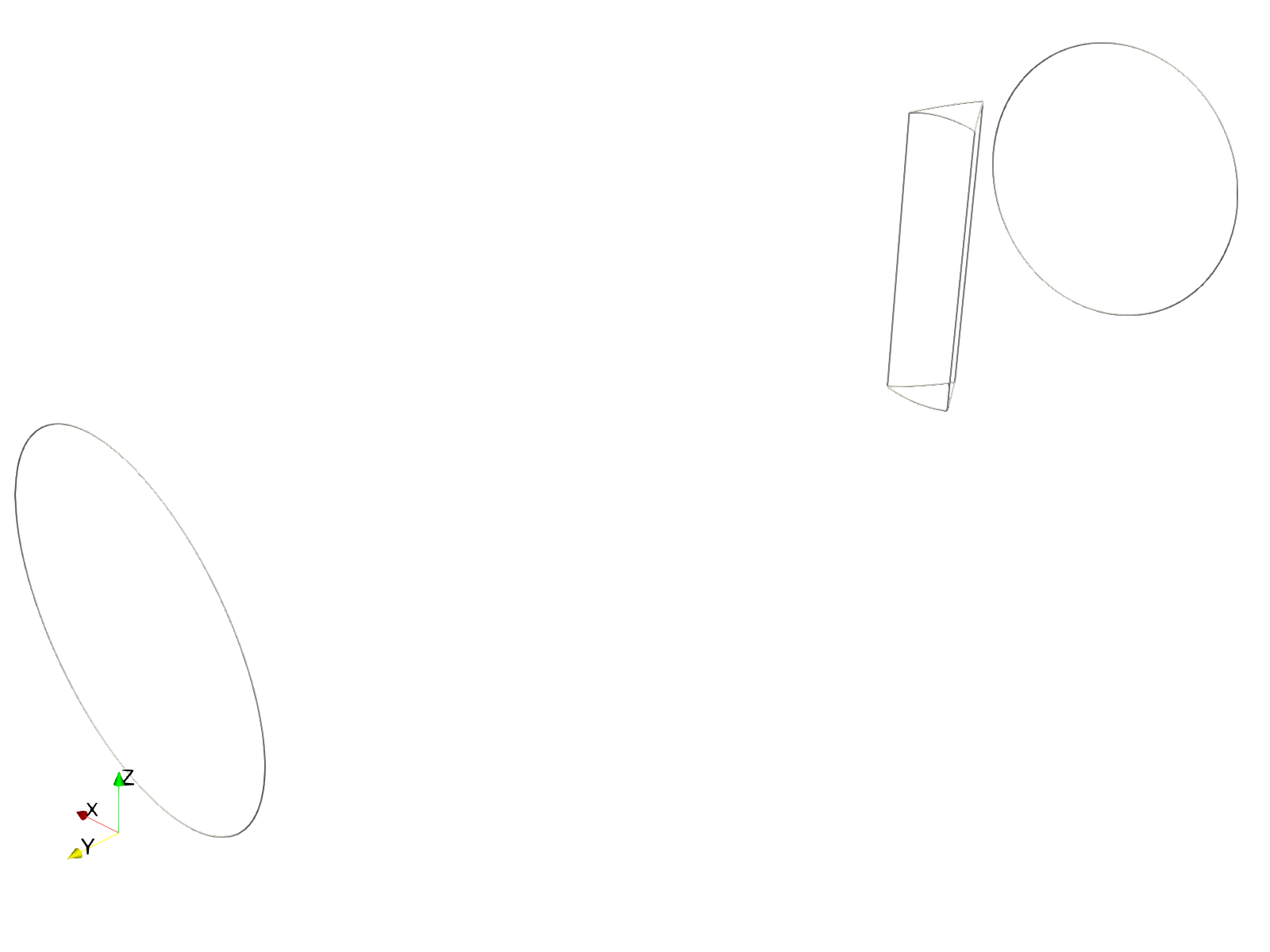
These feature edges guide background mesh refinement and improve geometry snapping during mesh generation.
Mesh generation
With surface preparation complete, we can generate the mesh. The first phase is creating the castellated mesh. We refine the background mesh along the extracted feature edges:
features
(
    {
        file "TubePrism_patched.extendedFeatureEdgeMesh";
        level 2;
    }
);
And across the entire surface geometry:
refinementSurfaces
{
    TubeWithPrism
    {
        level (2 2);
    }
}
Snapping uses standard settings targeting both explicit and implicit surface features.
Next, we add three surface boundary layers along the tube wall and prism surfaces:
layers
{
    "TubeWithPrism_(Tube|Prism.*)"
    {
        nSurfaceLayers 3;
    }
}
Boundary layer insertion relies on patch names. Because we previously named our
solids (Inlet, Outlet, Tube, and Prism{1,2,3}), we can reference them
directly using regular expressions in the layer configuration. All other layer
parameters remain at their default values.
Running snappyHexMesh yields the final mesh. Below the prismatic layers around
specified patches are shown:
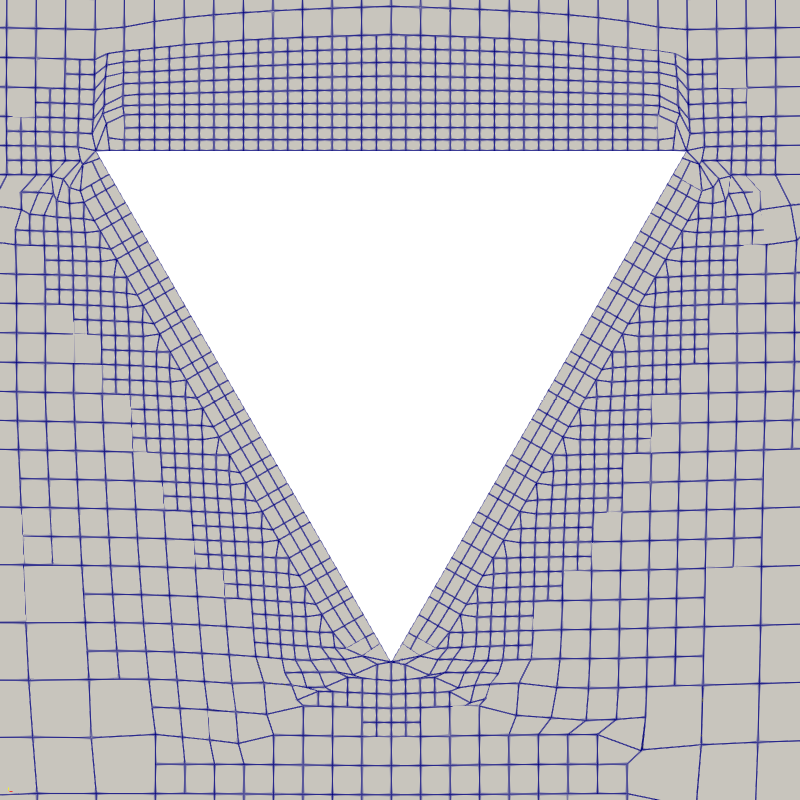
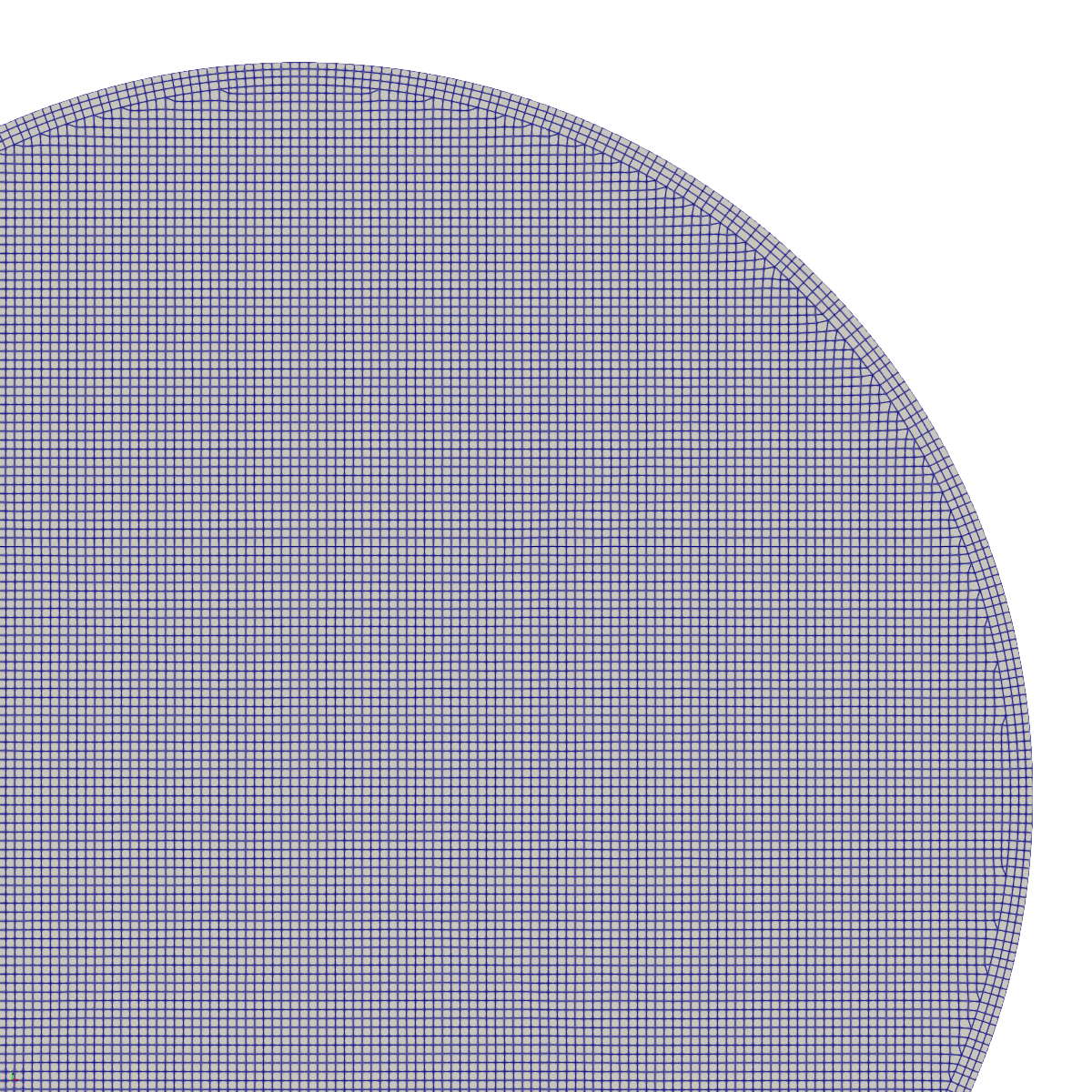
The mesh captures all necessary geometric features, allowing us to proceed to solver setup.
Simulation Setup
As in previous runs, we specify the inlet velocity and target Reynolds number
inside a custom settings dictionary in the case root folder:
// Flow conditions
Uin 1;
Re 400;
We then compute dynamic fluid properties inside constant/transportProperties:
nu #eval "$Uin*$D/$Re";
HPC Execution Script
When submitting the job to an HPC cluster managed by Slurm, the batch execution script looks like this:
#!/bin/bash

#SBATCH -p partition
#SBATCH -N 1
#SBATCH -n 32
#SBATCH -J VK/P
#SBATCH -t 8-00:00:00

module purge
module load openfoam/v2606

. ${WM_PROJECT_DIR:?}/bin/tools/RunFunctions

runApplication -o foamDictionary \
                       -set $SLURM_NTASKS \
                       -entry numberOfSubdomains system/decomposeParDict

[ -d processor0 ] || {
runApplication blockMesh
runApplication surfaceFeatureExtract
runApplication decomposePar
srun snappyHexMesh -overwrite -parallel > log.snappyHexMesh 2>&1
runApplication reconstructParMesh -constant
rm -rf processor*

restore0Dir
runApplication decomposePar
}

srun pimpleFoam -parallel > log 2>&1
The script configures the environment using environment modules and updates
numberOfSubdomains in decomposeParDict to match the allocated Slurm tasks
(32 cores). It then constructs the base mesh with blockMesh, extracts surface
features, generates the mesh in parallel with snappyHexMesh, reconstructs it,
and finally runs pimpleFoam across all cores.
Post-Processing & Visualization
Streamline Visualization
Once the simulation completes, we turn to visualization. Extracting the velocity field along the center-plane of the tube confirms the flow instability:
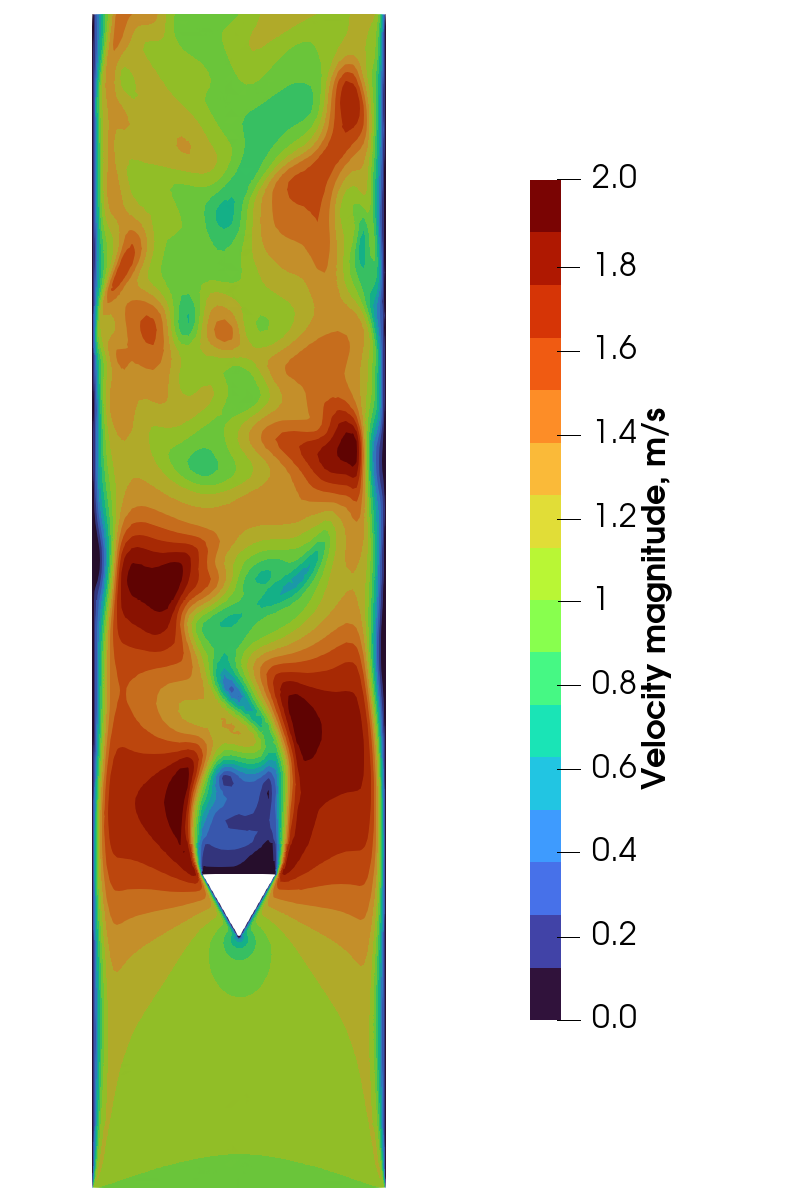
While the center-plane plot confirms vortex shedding, it remains a 2D slice. To visualize the full 3D vortex structure, we can seed streamlines.
Because the inlet mesh is relatively fine, using the entire inlet patch as a seed source would generate far too many streamlines. Instead, we use a Programmed Source in ParaView to custom-seed starting points.
Assuming the inlet center is at (0, 0), we distribute seed points using polar
coordinates (r*cos(theta), r*sin(theta)).
Note: If your inlet center is offset, add the corresponding translational shif.
In the Programmed Source script, we set the total point count, boundary radius, and golden angle multiplier for uniform distribution:
import vtk
from math import pi, sqrt, cos, sin

num_points = 200
radius = 0.5
golden_angle = pi * (3.0 - sqrt(5.0))
Next, we construct the VTK output objects:
output = self.GetOutput()
points = vtk.vtkPoints()
verts = vtk.vtkCellArray()
We compute point coordinates using a Fibonacci spiral distribution:
for i in range(num_points):
    r = radius * sqrt(i / float(num_points))
    theta = i * golden_angle

    x = r * cos(theta)
    y = r * sin(theta)

    point_id = points.InsertNextPoint(x, -3.99, y)

    verts.InsertNextCell(1)
    verts.InsertCellPoint(point_id)
Finally, we pass the generated points and vertices to the VTK output container:
output.SetPoints(points)
output.SetVerts(verts)
This generates a balanced distribution of seed points across the inlet plane:

Passing these seed points to the Stream Tracer filter produces an animation that clearly reveals the 3D vortex dynamics downstream of the prism:
Q-Criterion Iso-Surfaces
Another effective method for vortex identification is the Q-criterion, defined as half the difference between the squared norms of the vorticity tensor (Ω) and the strain rate tensor (S):
Q = 0.5( ||Ω||² − ||S||² )
When Q is positive, rotational motion dominates shear deformation, making Q iso-surfaces ideal indicators of core vortex structures. In ParaView, the Q-criterion can be computed directly using the Gradient filter:
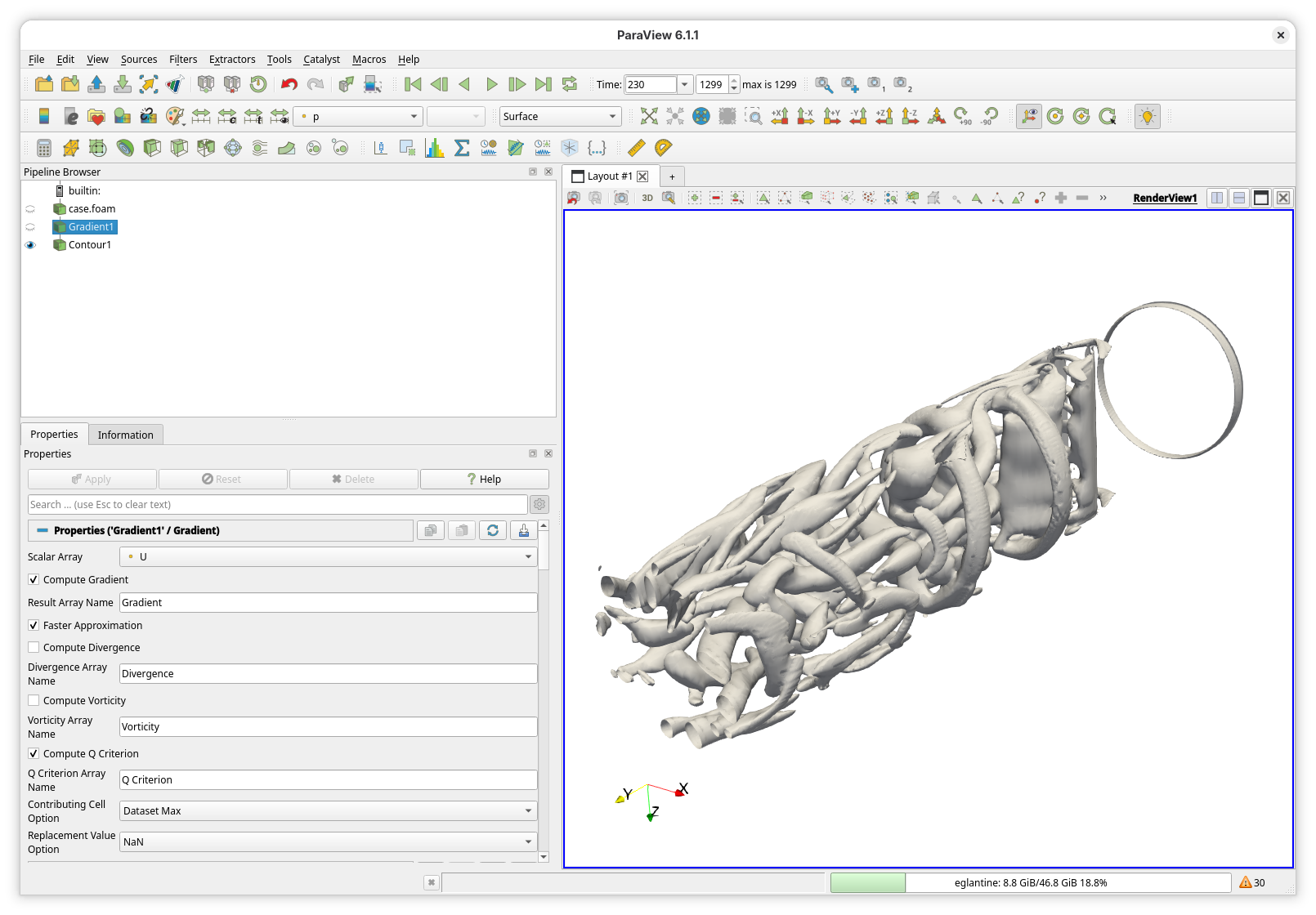
Plotting the positive Q iso-surfaces gives the following flow animation:
Although both rendering techniques offer great insight, the streamline representation provides a cleaner view of flow pathlines.
As usual, all case configuration files and CAD geometries are available in the O2M showcases repository.